One working day
Morning to sign off, one step at a time. Everything you see is the app as it ships, on a demo project. Use Next, the arrow keys, or tap the screen.
Rather watch it? This chapter as a narrated clip.
The daily log
This is one working day, morning to sign off, on a demo project. Sign in with the account you already have. There is no password to invent.
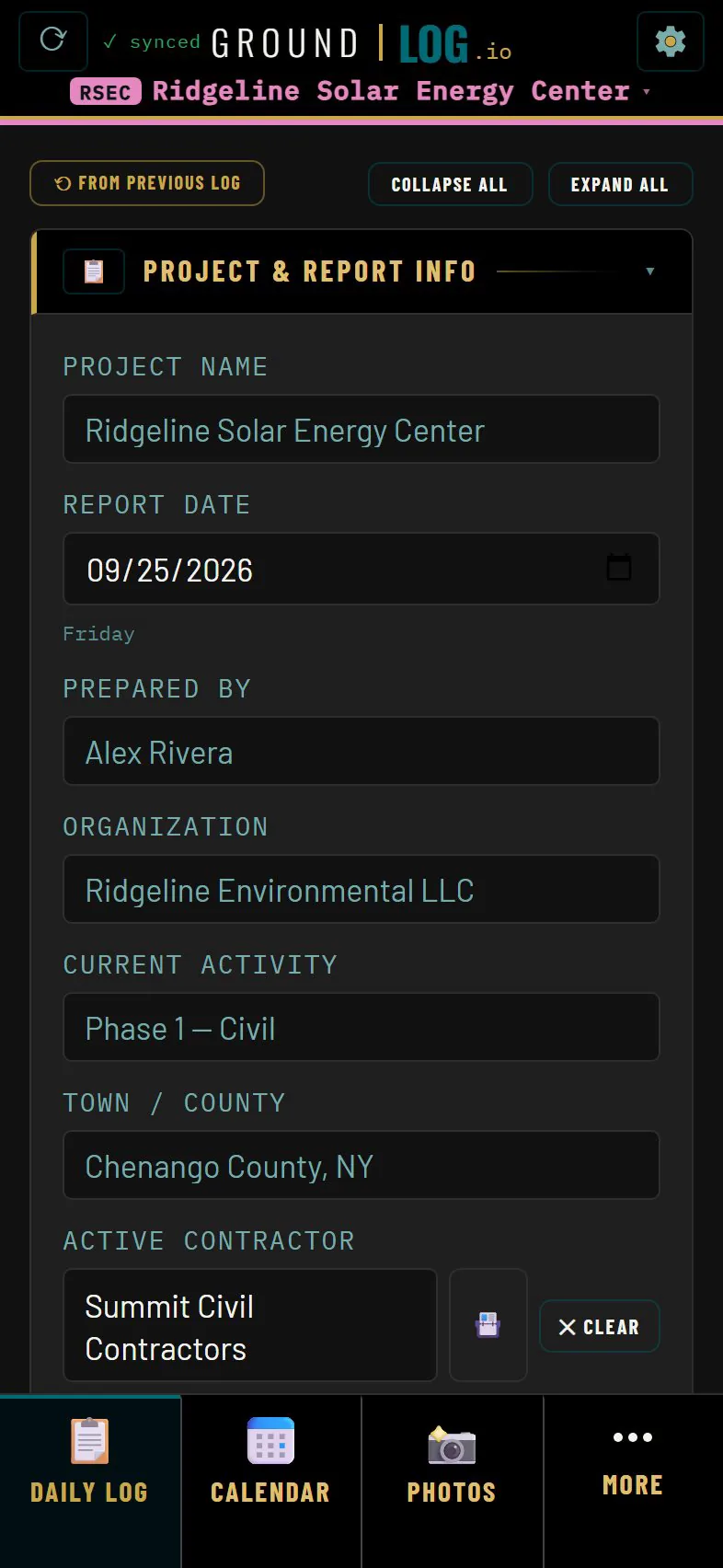
A new day. The app notices, carries your open items over, and keeps yesterday where it was. Start fresh, and this is your daily log. A digital field notebook built from cards, already set up for your project.
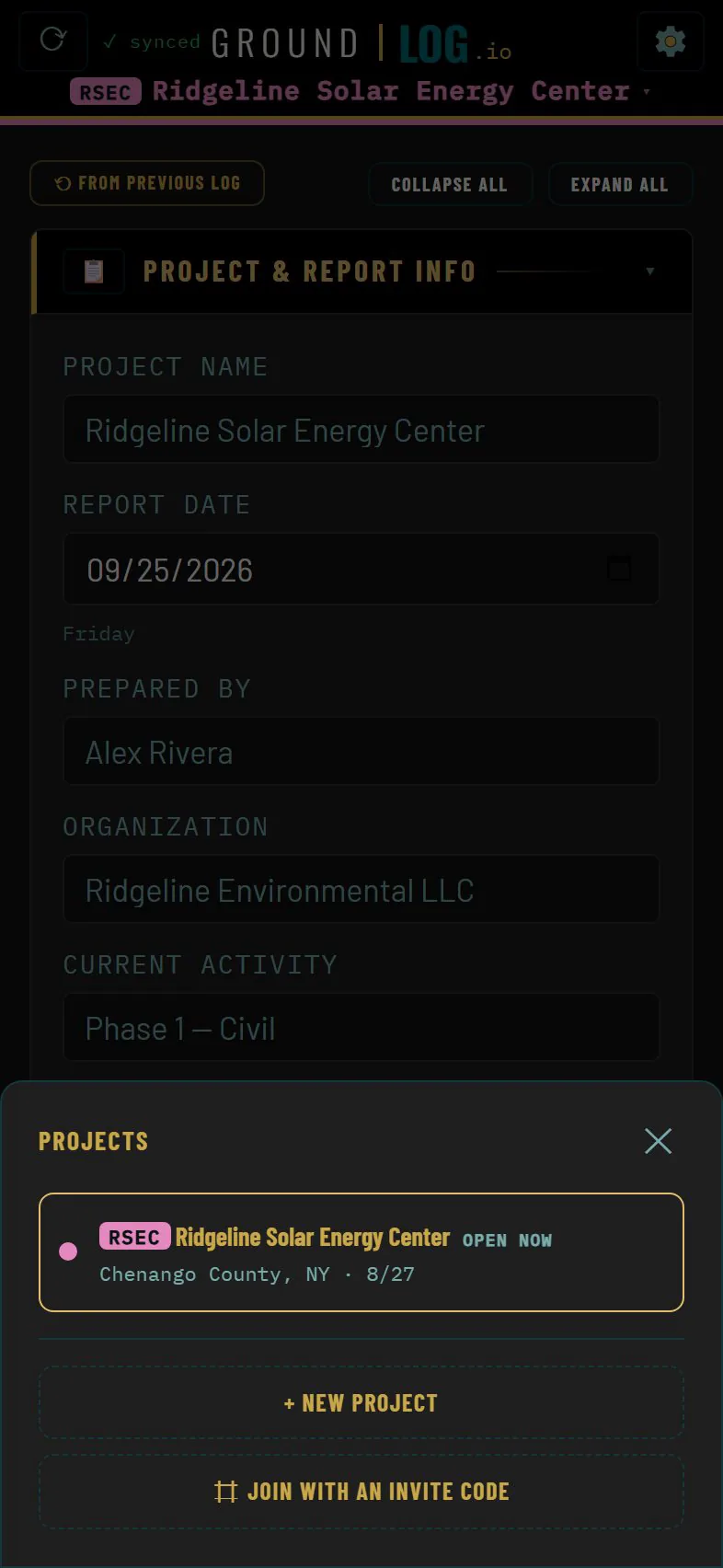
Everything lives inside a project. The chip at the top always tells you which one you are in. Firms with several sites switch here.
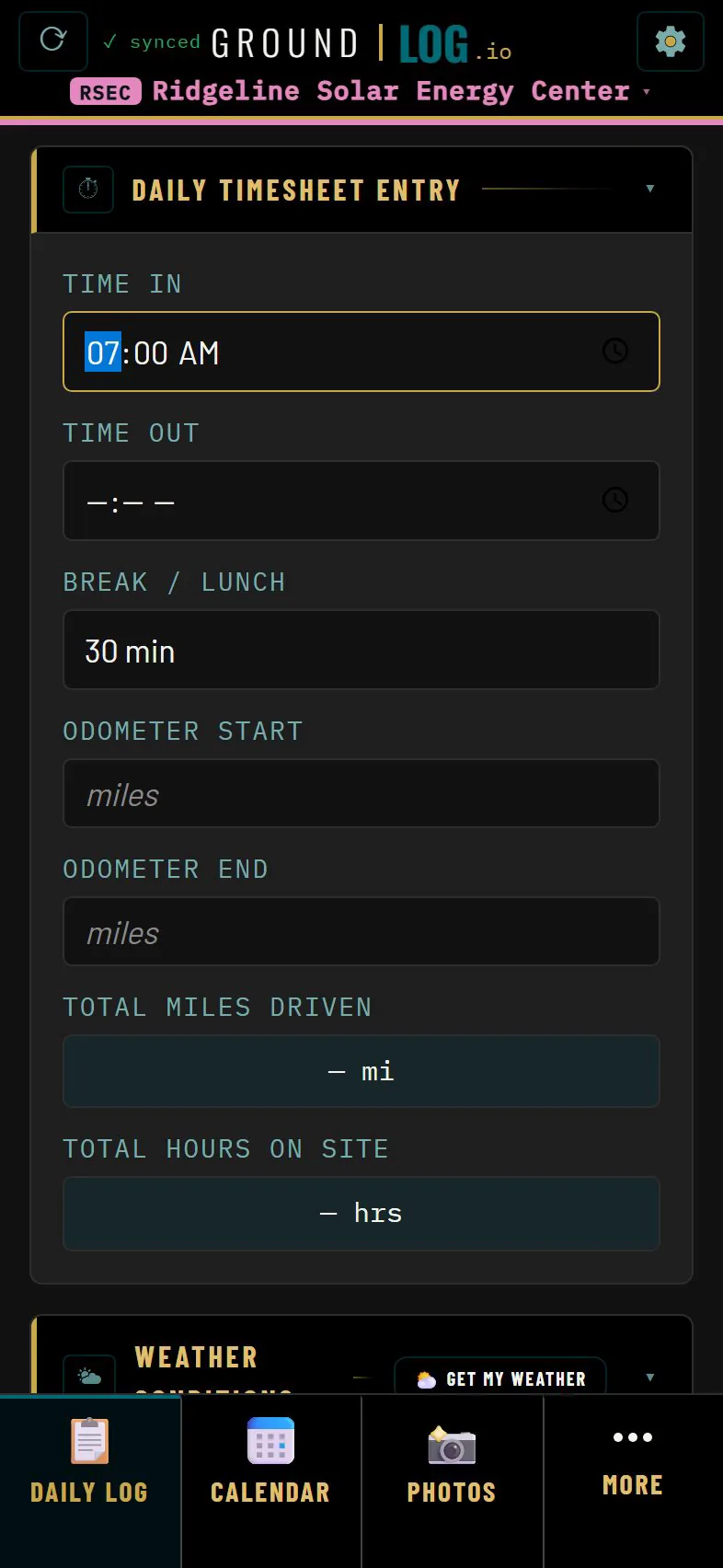
Set your time in and the day starts tracking itself. Hours and mileage add up on their own.
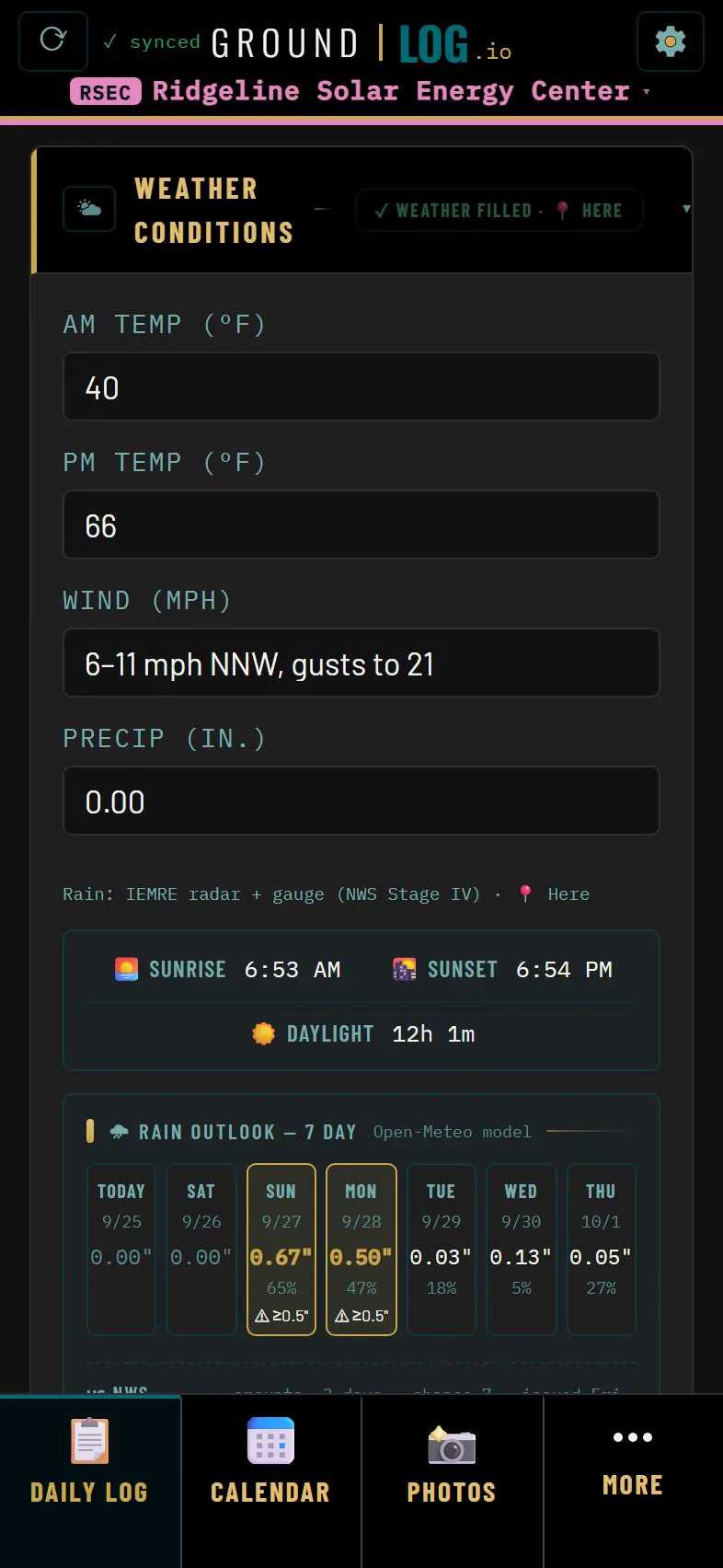
Weather fills itself for your location. Temperatures, wind, rain, sunrise and sunset. Ready for the report.
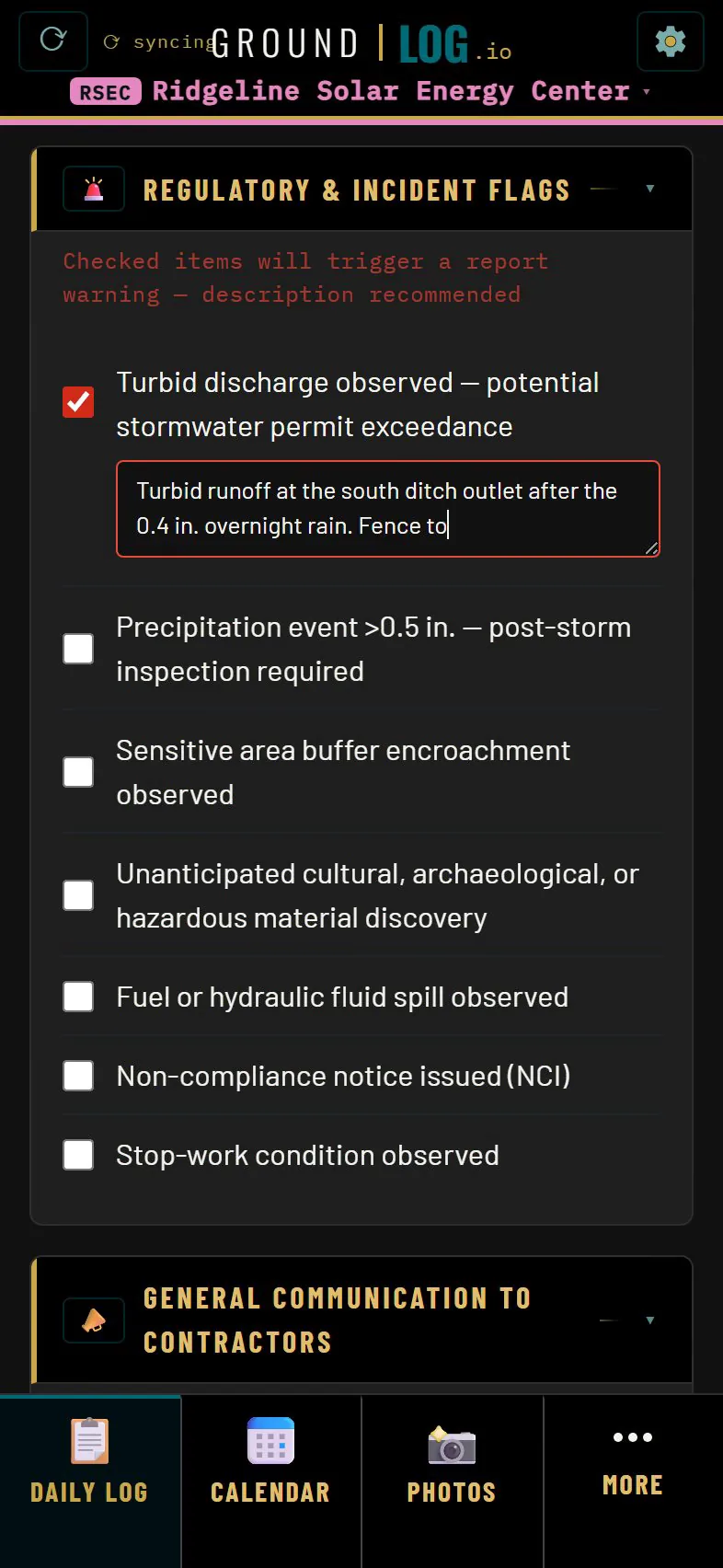
The compliance checklist keeps your walkdown honest. Regulatory flags, a turbid discharge, a storm event, drop straight into the log.
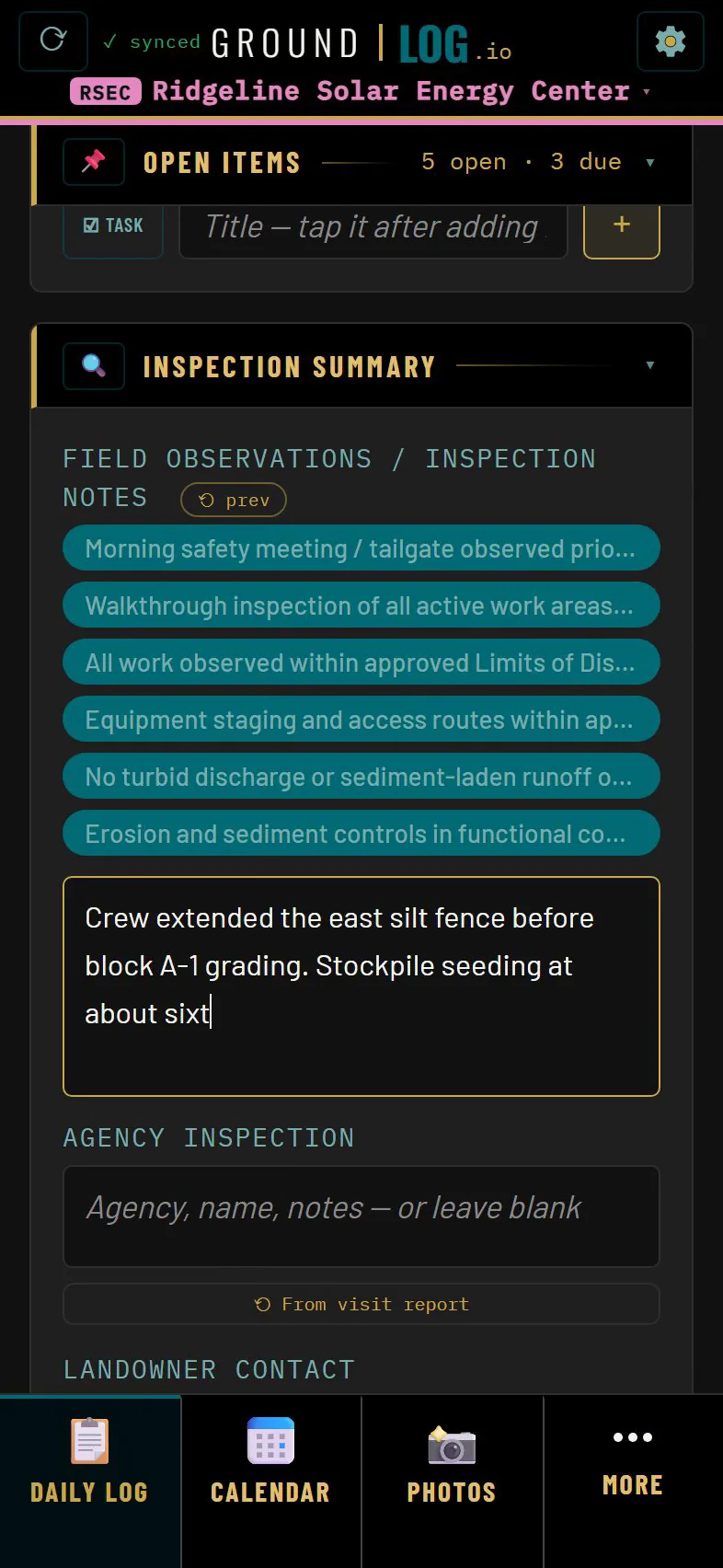
Add the details in your own words. Every text field grows with what you write.
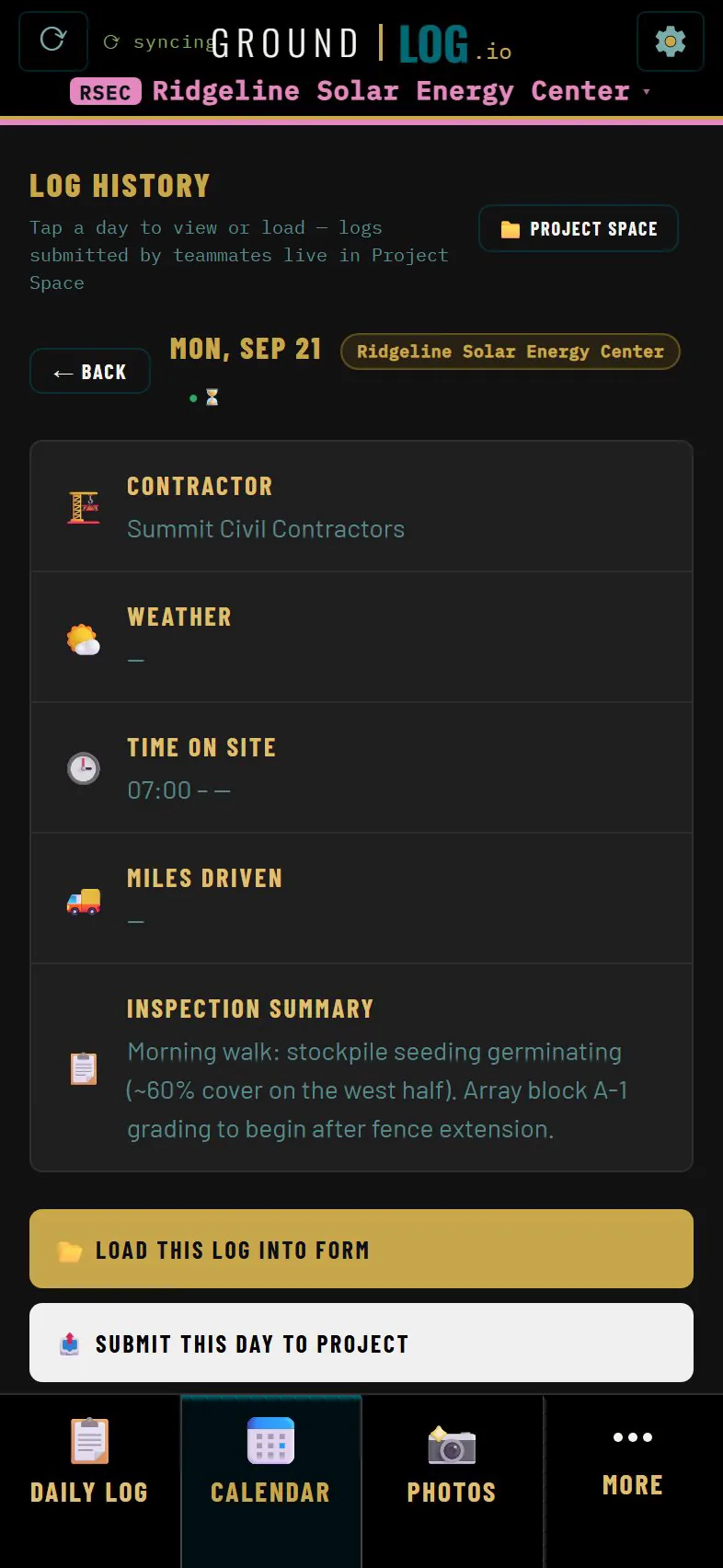
The calendar shows every day you have logged. Yesterday is one tap away, and today carries forward what it should.
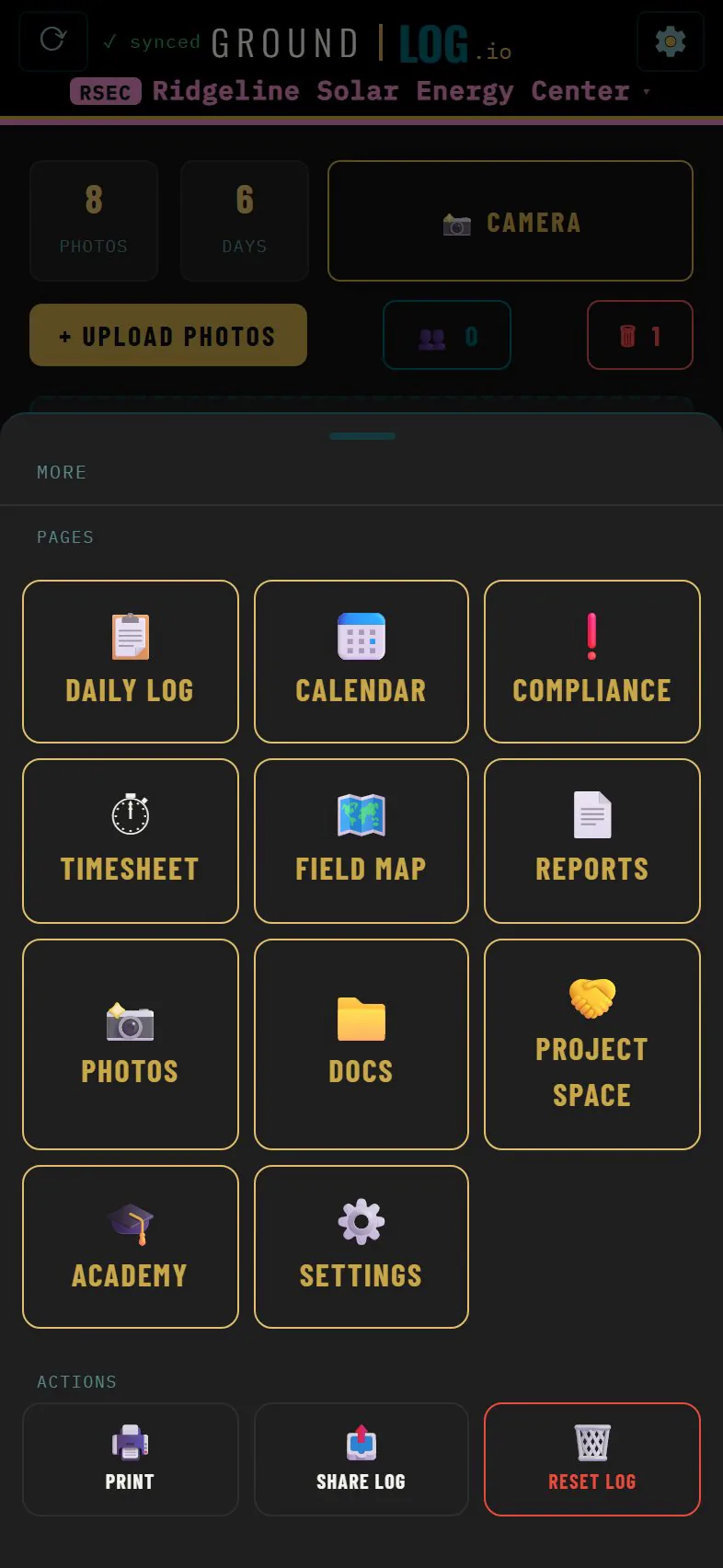
Every page is one tap away. Map, photos, calendar, and the rest under More.
Field map and tracker
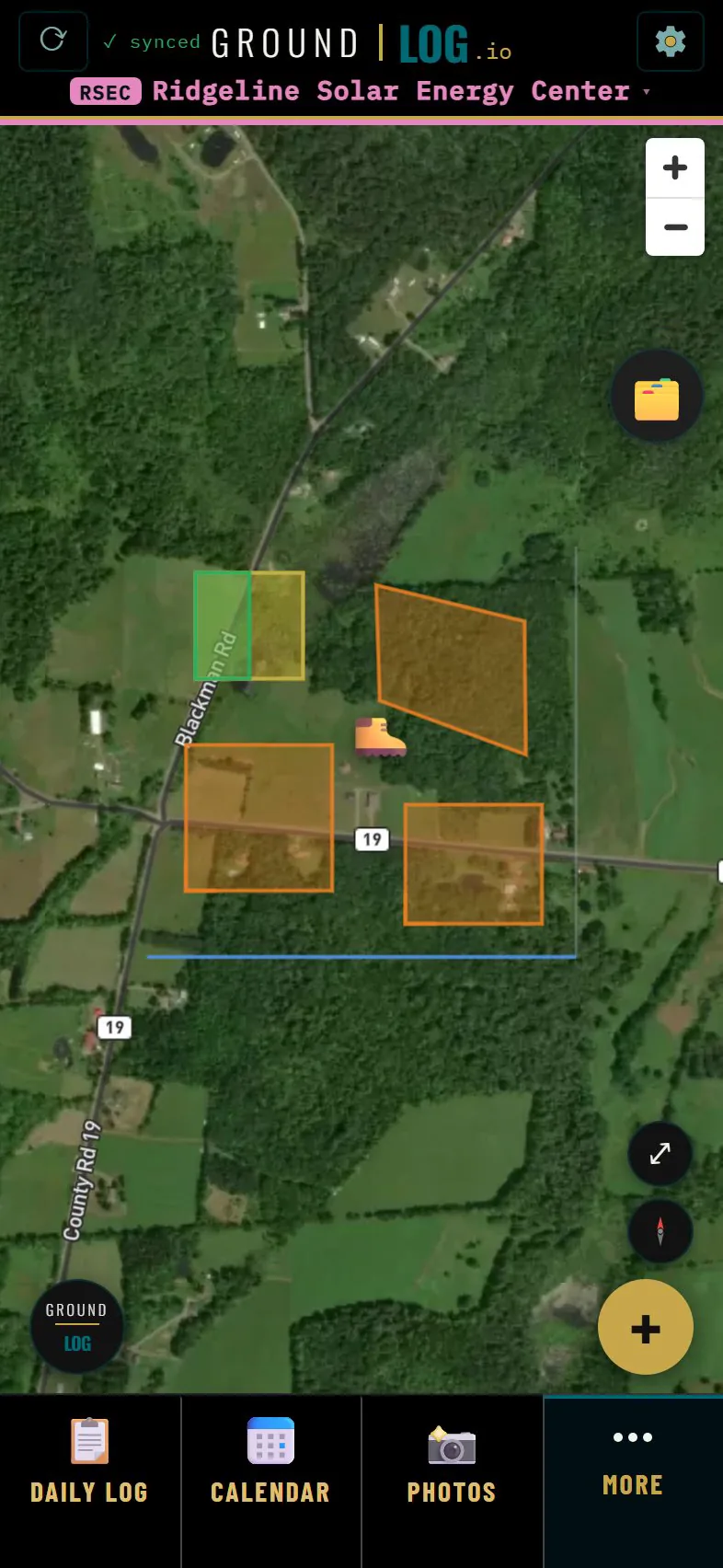
The field map is where GroundLog tracks real work on real ground. Your site, on satellite, with every layer you have drawn.
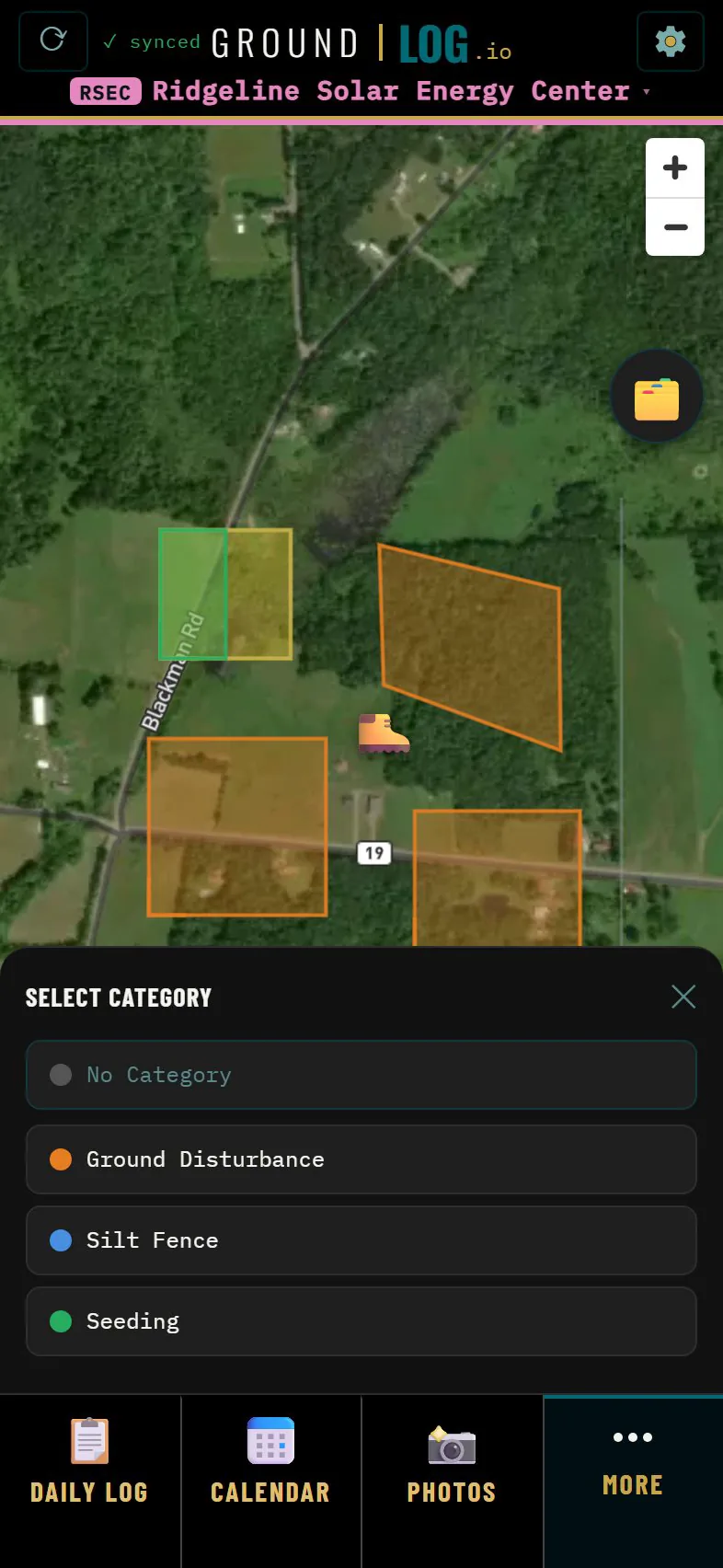
Every tracker category starts from a template. Seeding, ground disturbance, linear practices like silt fence. Pick the closest one. Everything stays editable.
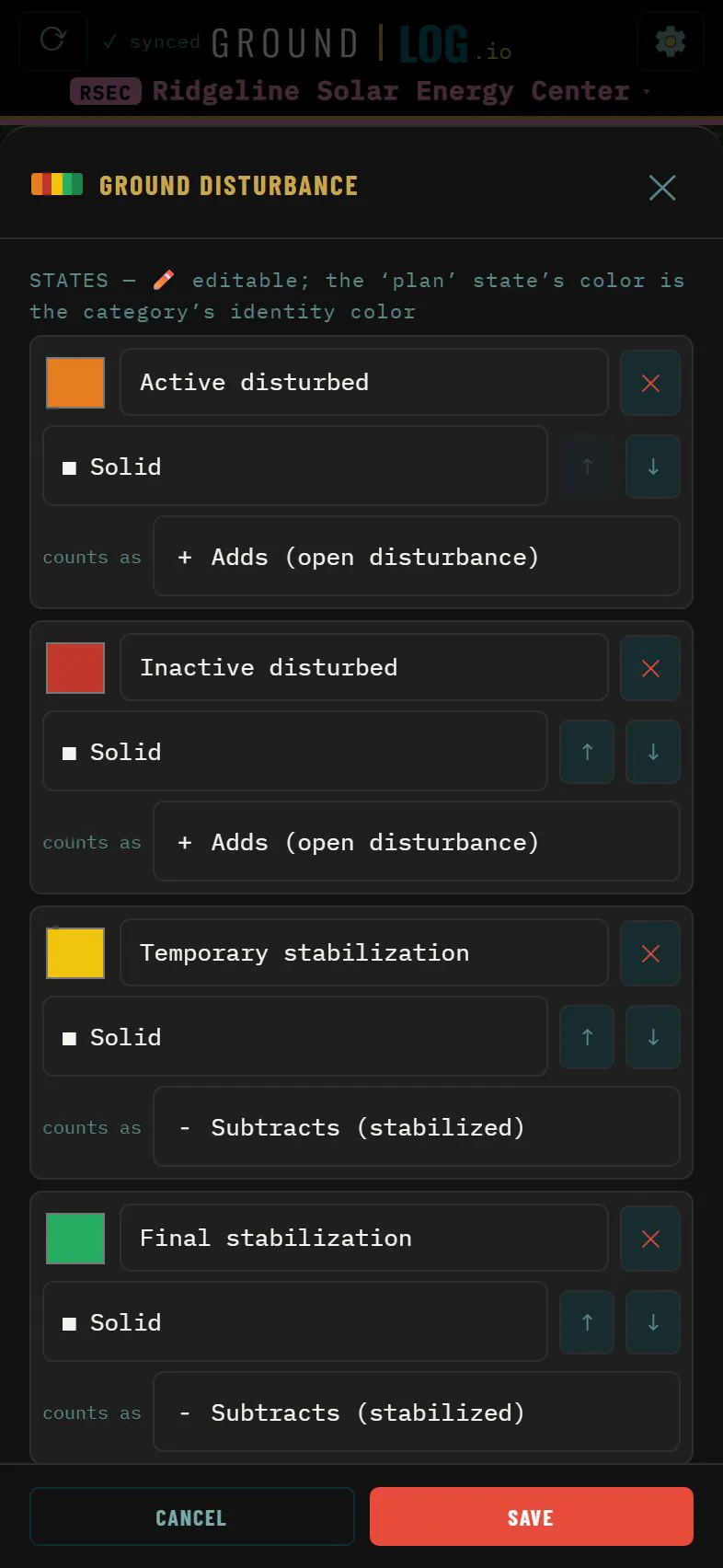
A category is built from states. Each state has its own color and its own progress. Ground disturbance runs active, inactive, temporary, final, closeout.
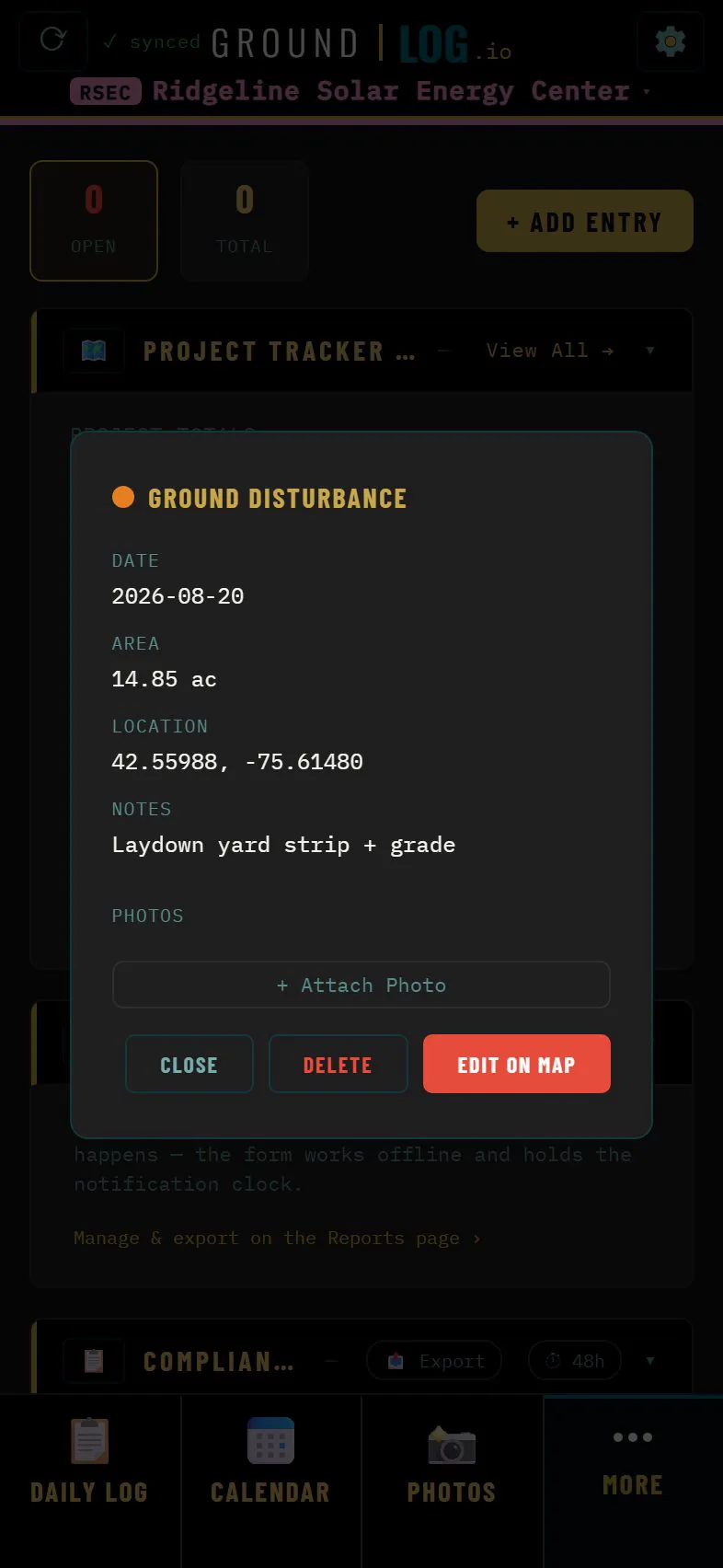
Tap any layer and you get its acreage, its date, its state, and what went down on it.
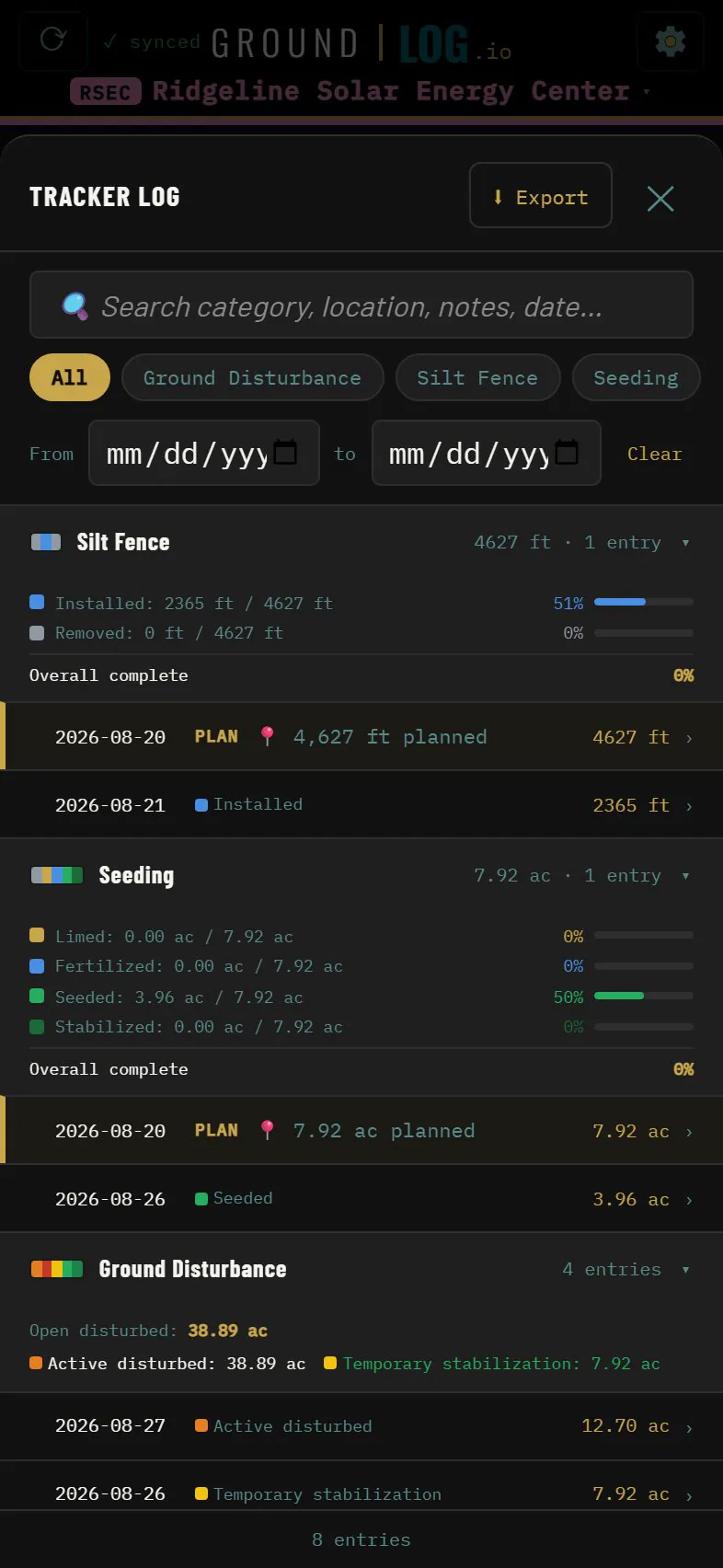
Now open the tracker log. Every state measured against the plan, acre by acre, automatically. And the number the permit cares about: total open right now, against the cap. Nobody adds it up by hand.
Photos
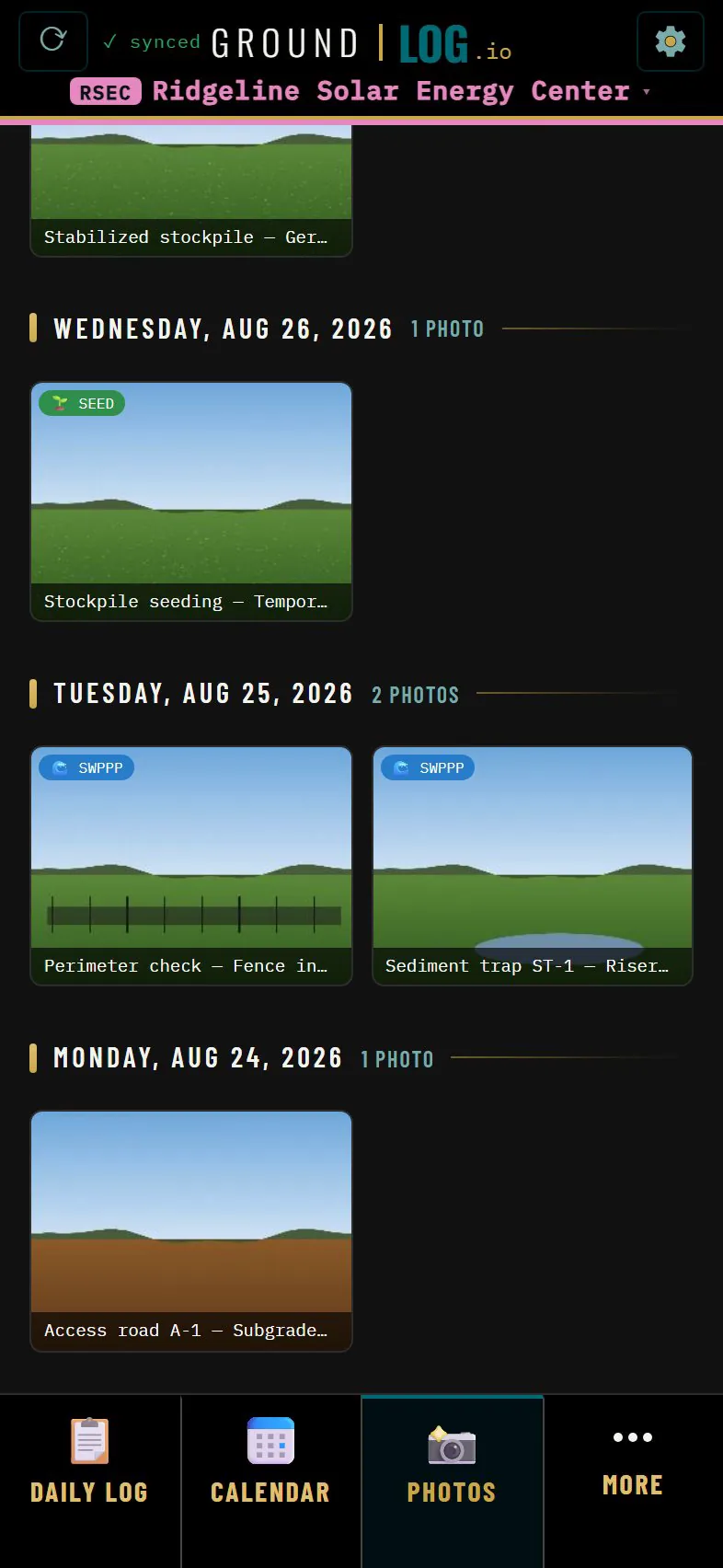
The Photos page groups your day for you. Newest first, by date. Every one stamped with the time and where you were standing.
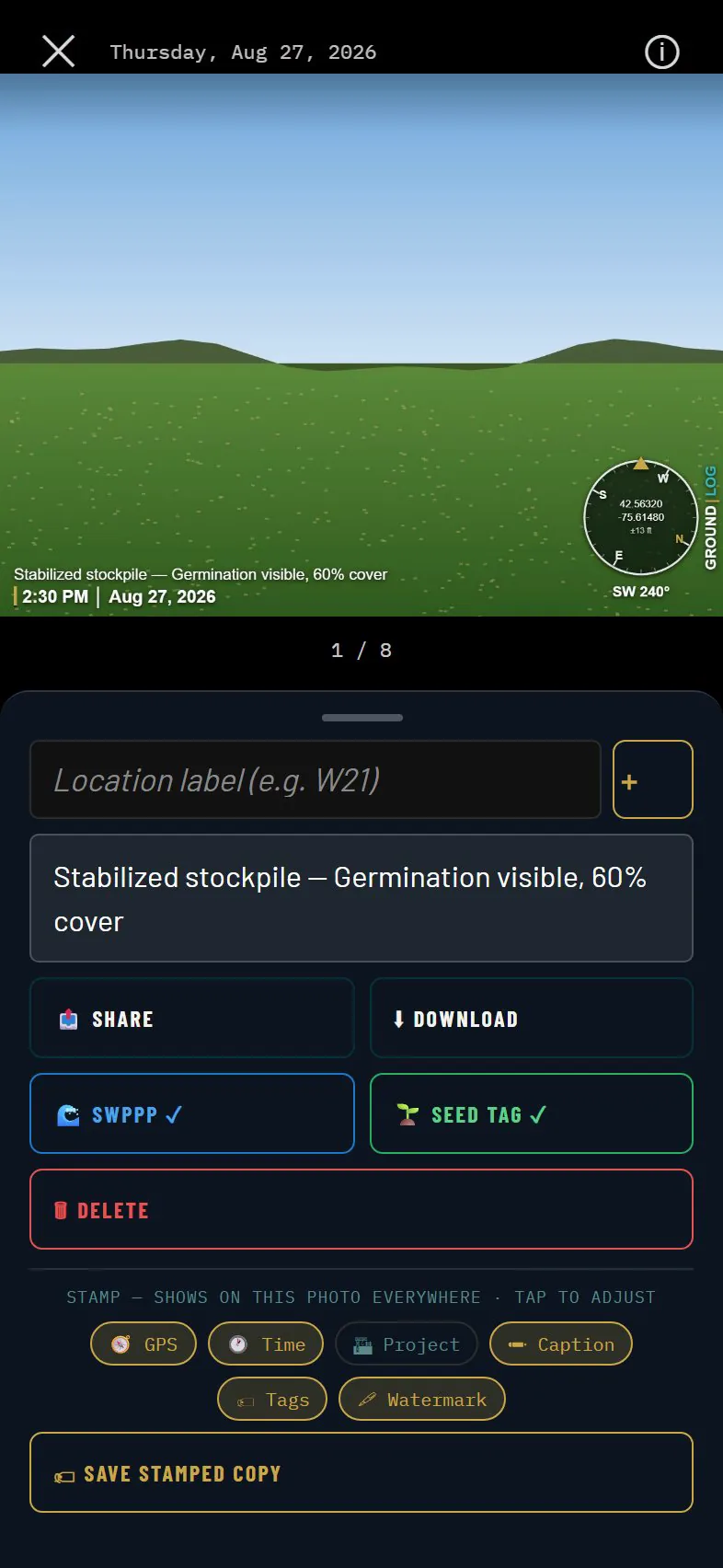
Open a photo and tag it. Tag it for the stormwater inspection, or for the seeding record, and it flows to that report on its own.
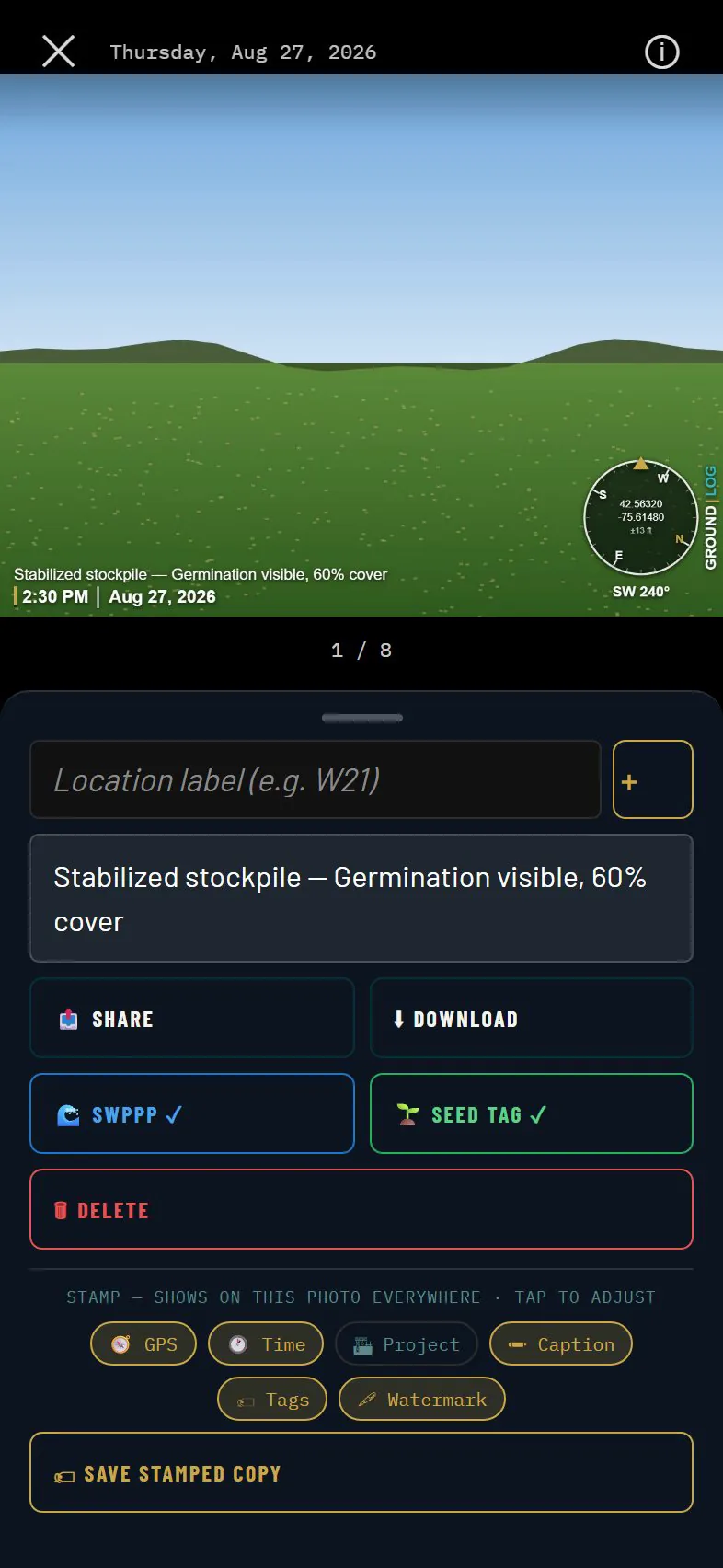
The stamp is a rendering, not paint. The clean original is always kept, and every element of the stamp can be turned off per photo, forever.
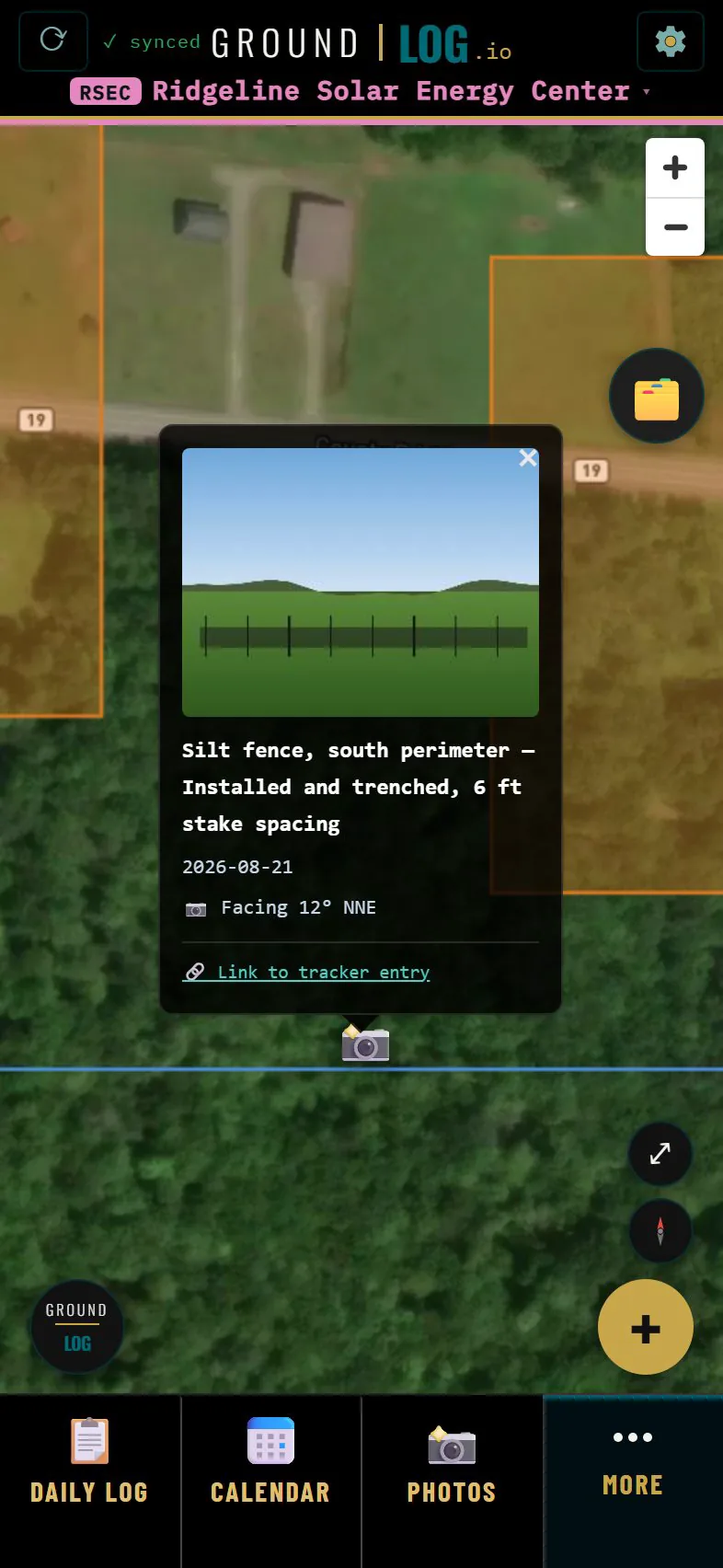
Every photo is also a pin on the map, where you were standing when you took it. Show today's, a date range, or all of them, and tap a pin to see the shot.
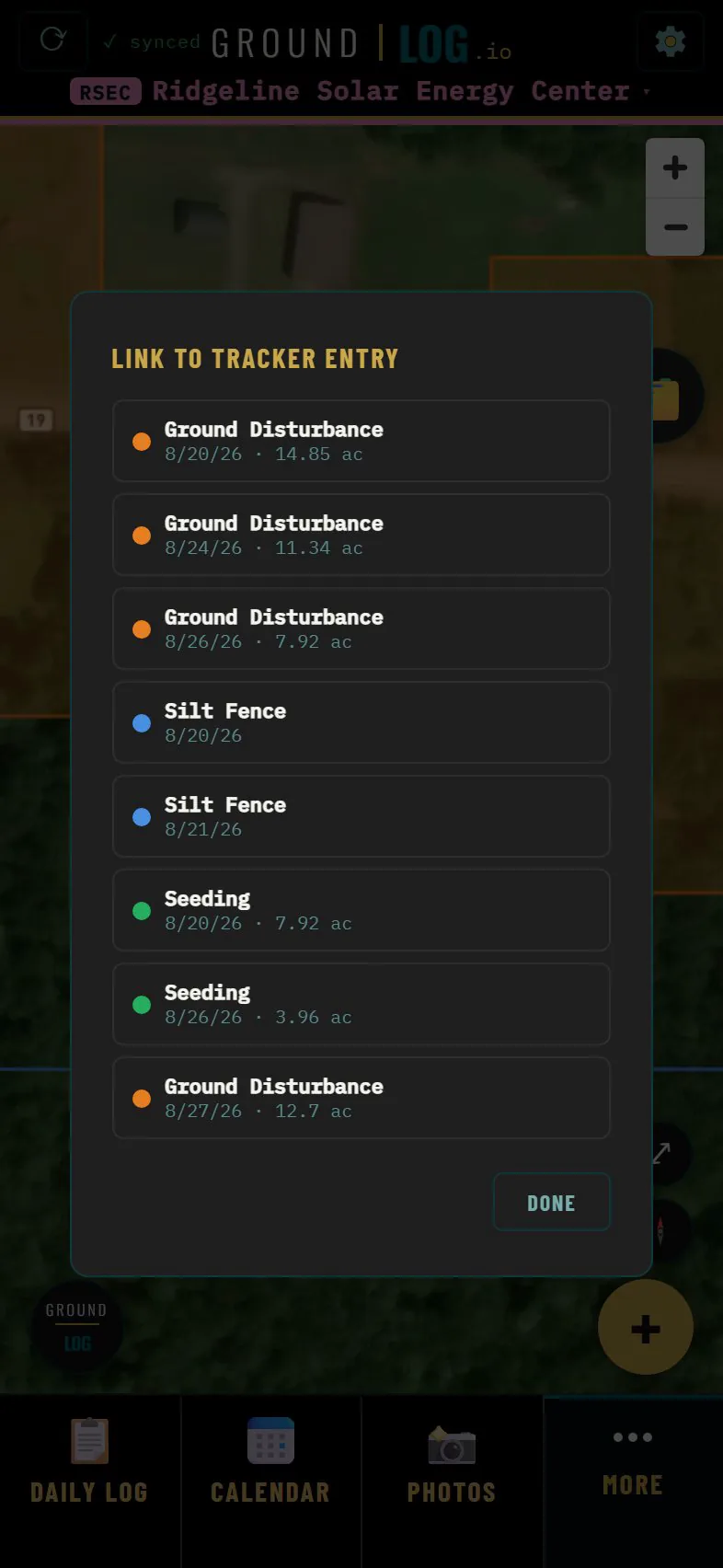
From the pin, link the photo to the work it shows. The layer keeps it, and the photo remembers the layer. Evidence, both directions.
Compliance records
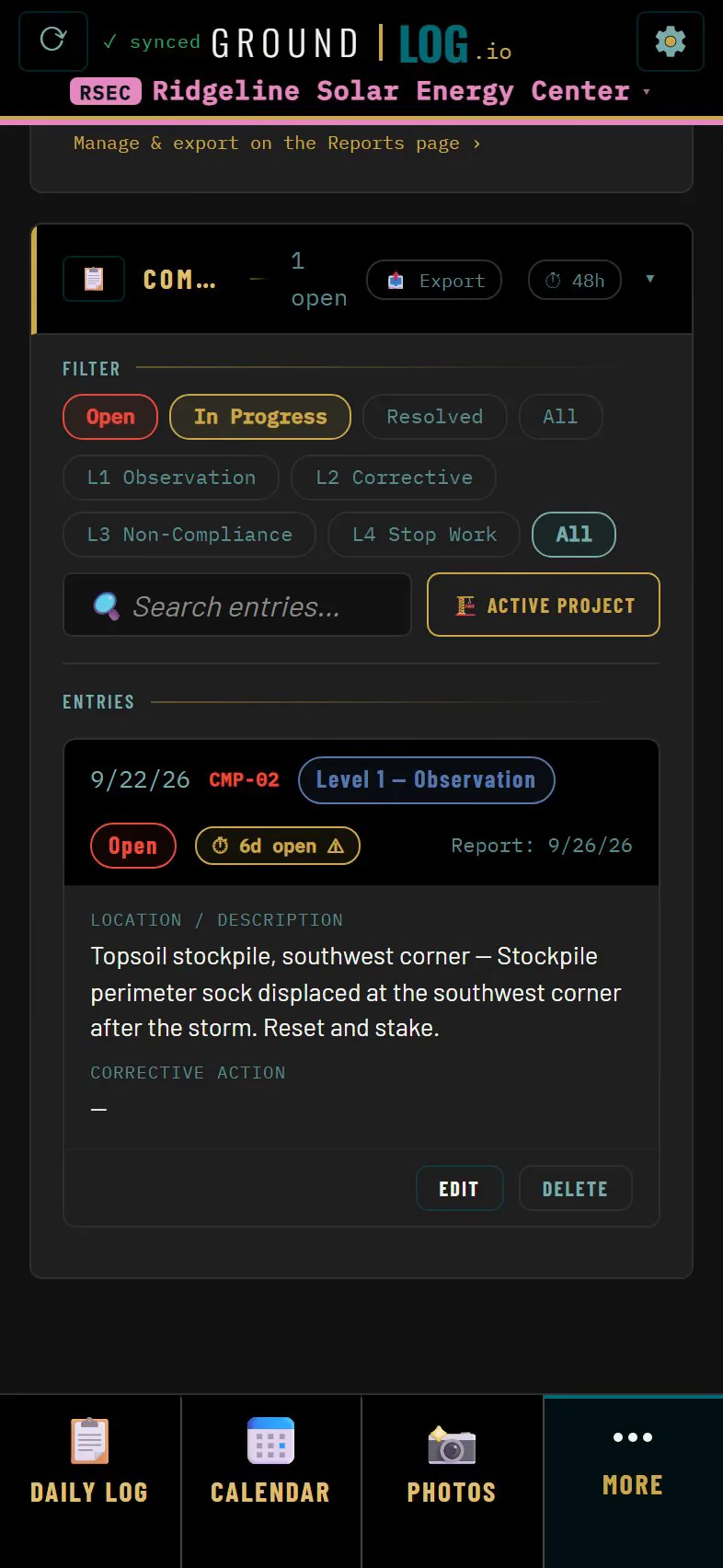
Compliance is a running record, not a form you fill once. Every observation is an entry with a date, a location and a status.
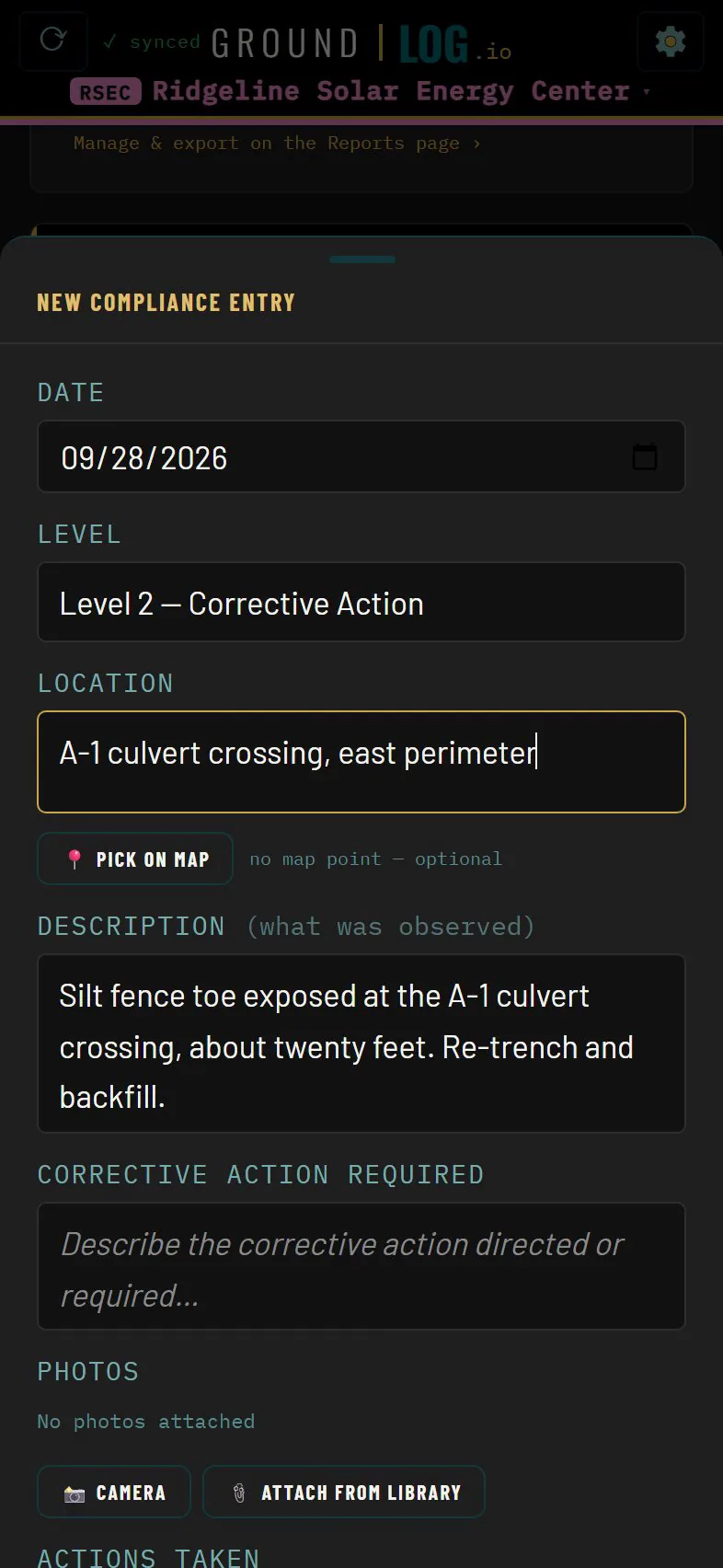
Add one from the field. What you saw, where, how serious, with a photo. It is in the record the moment you save.
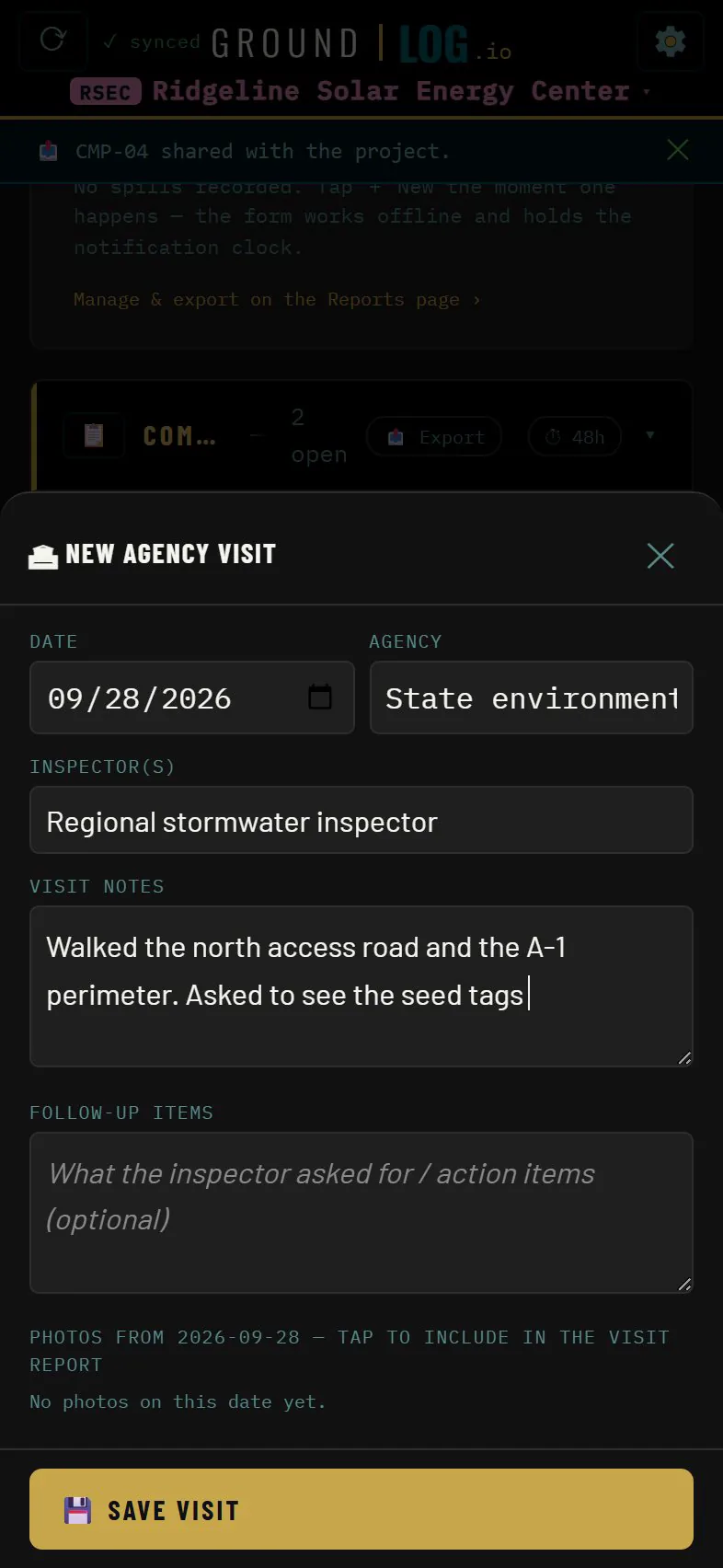
An agency walks the site. The visit is its own record. Who came, what they saw, what they asked for. One tap writes the summary into the daily log, and the running visit log exports on its own.
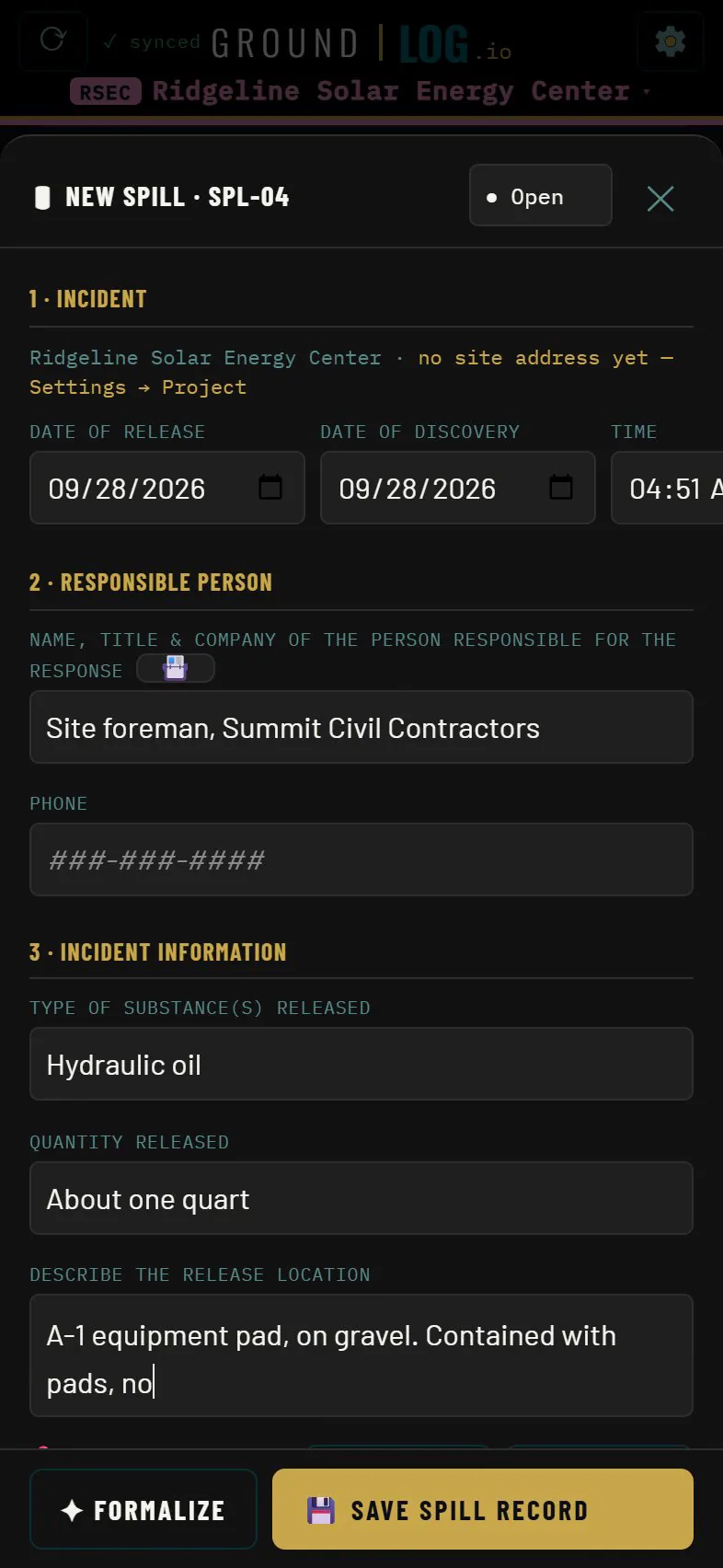
A spill gets the same treatment. What was released, how much, and where. The record asks what the incident form asks, runs the reportability test for your state, and keeps a timed log of who you notified and when.
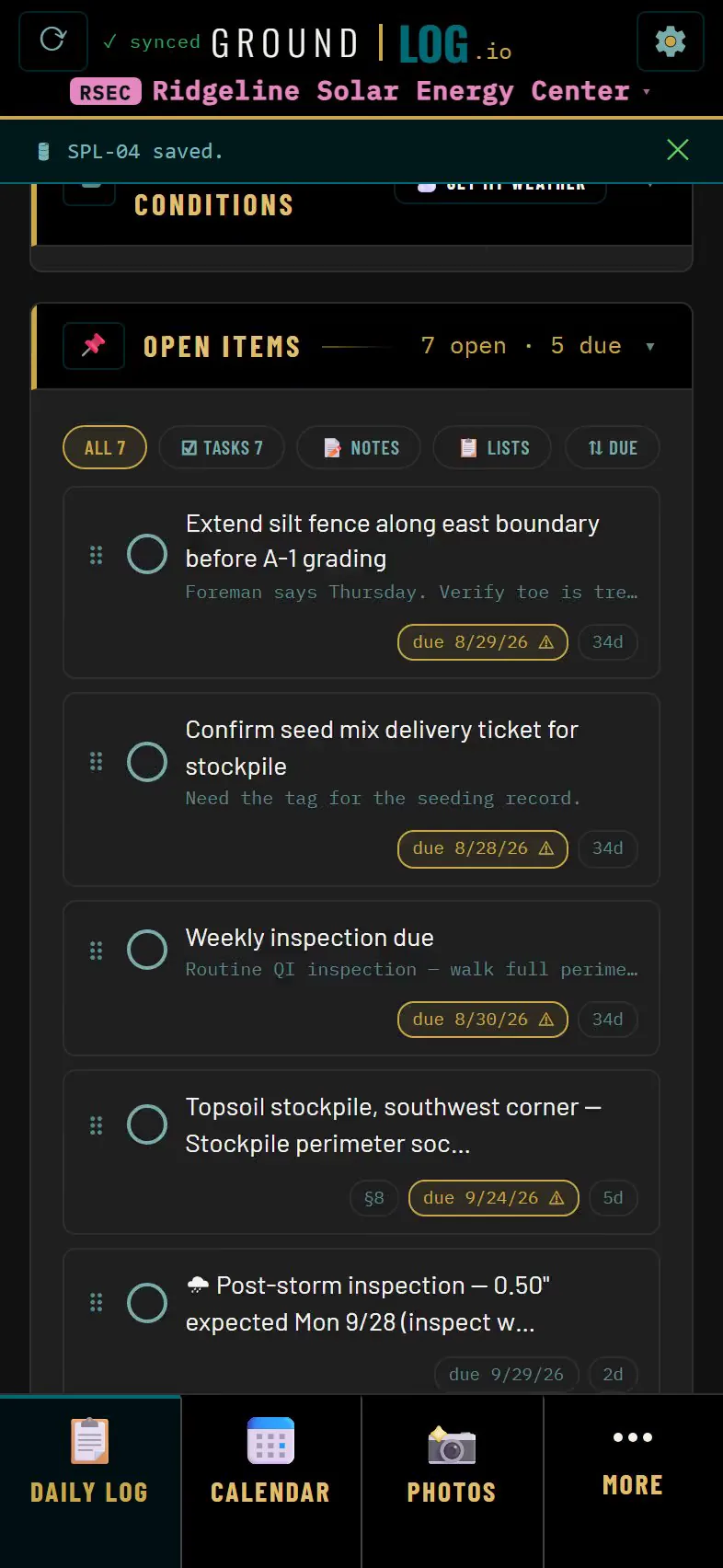
Open items are your to do list on the site. Add one, give it a due date, and it will find you. Resolve it with a note. The history stays.
Stormwater inspection
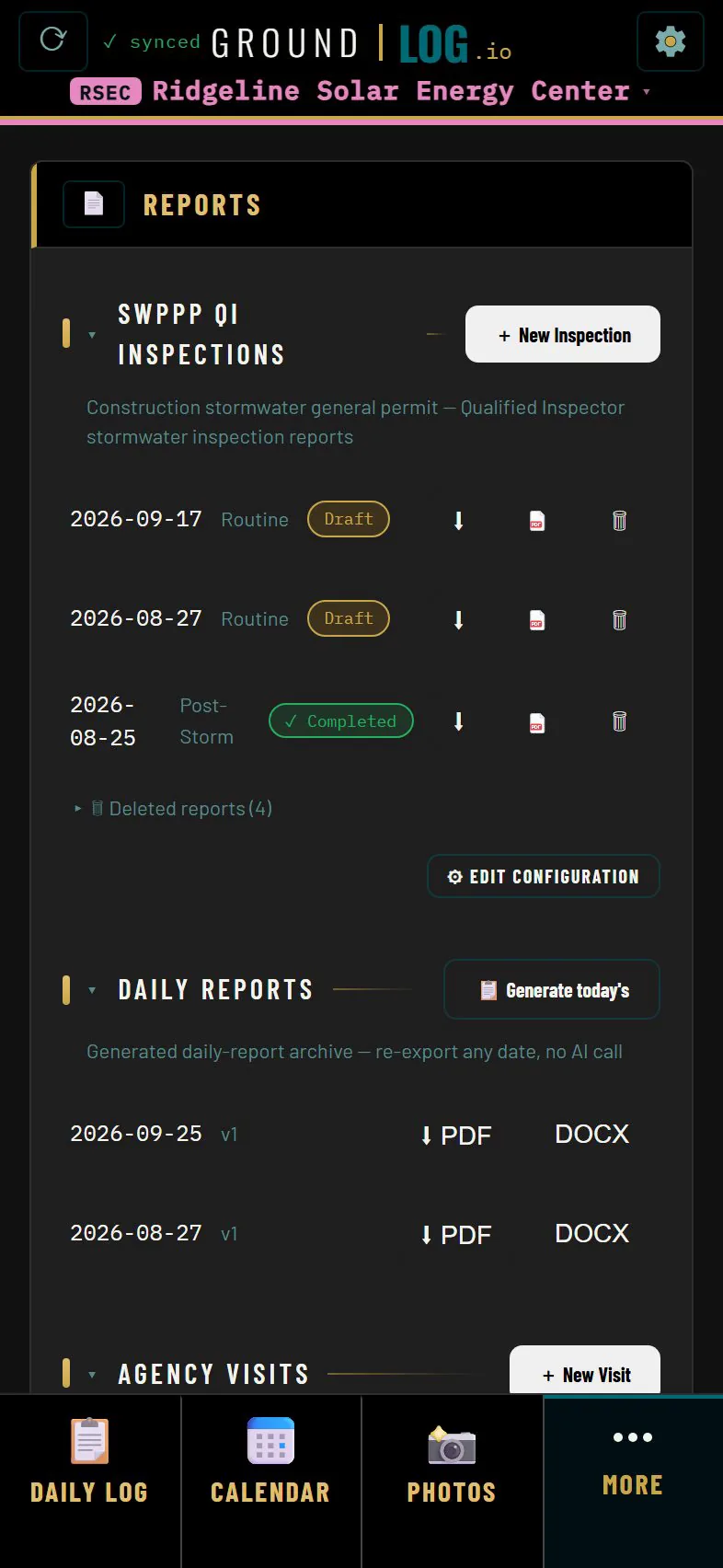
Stormwater inspections are kept on the Reports page. Here is the running list, newest on top, each one marked draft or completed.
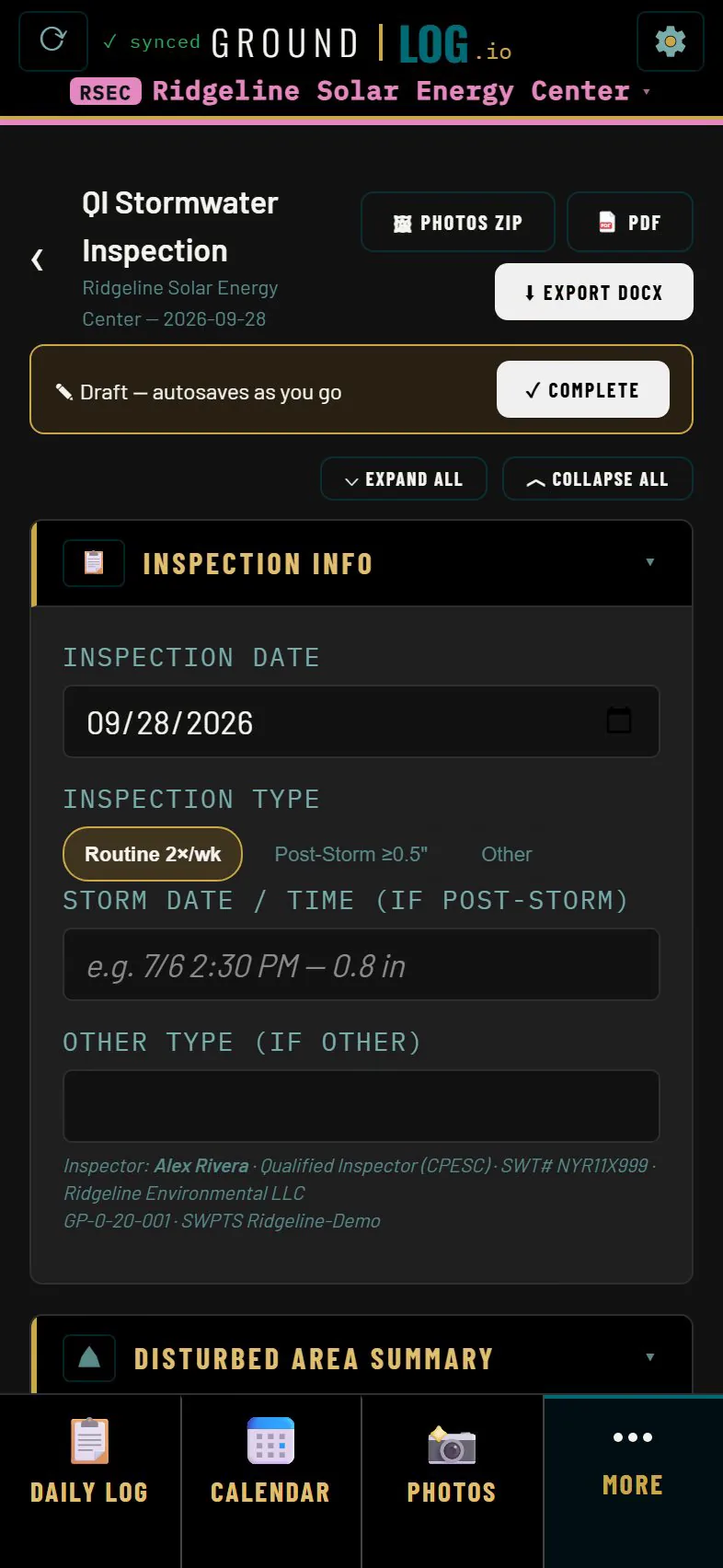
Start today's. The header already knows who you are, your credential and the permit. Everything else carries forward from last time.
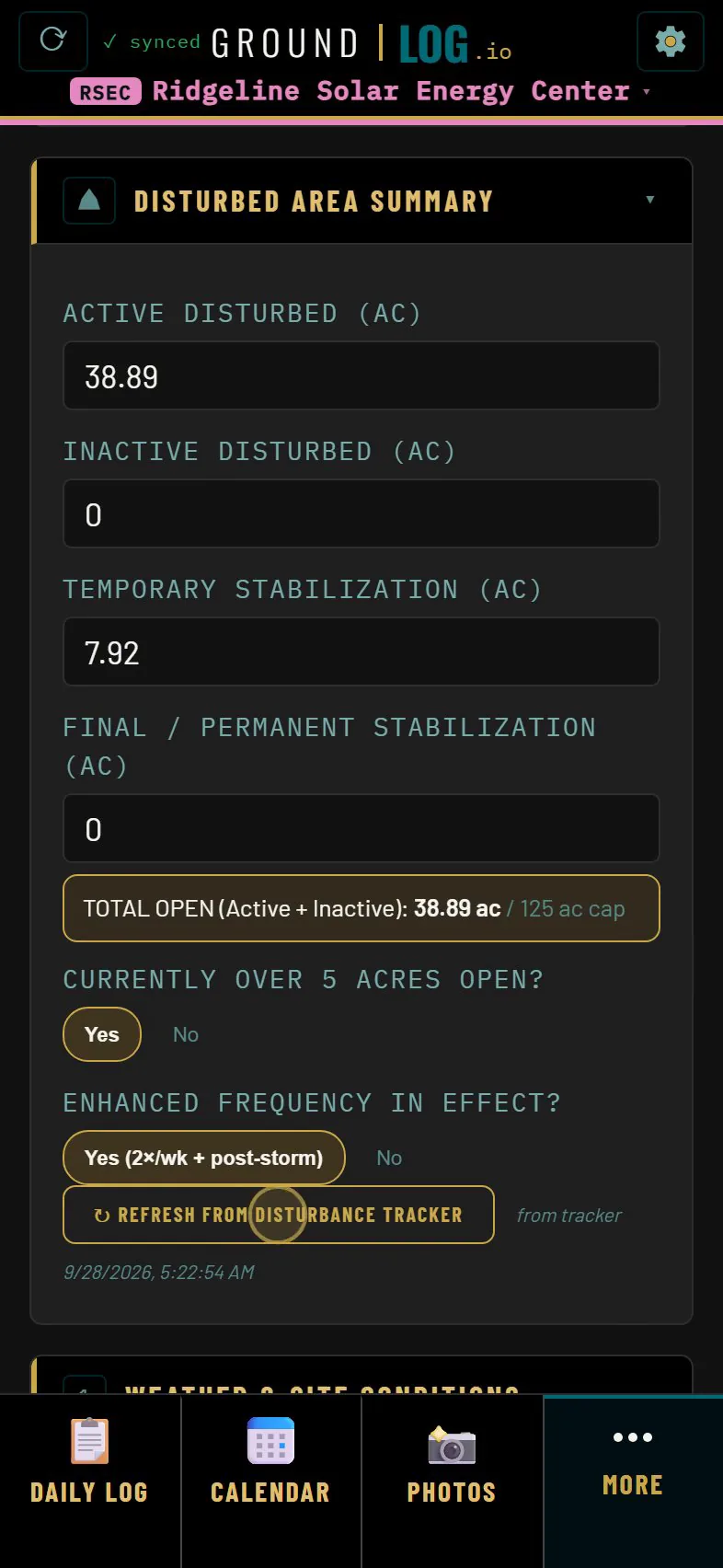
The disturbed area summary refreshes from the tracker log. One tap, and the acres are the acres you drew.
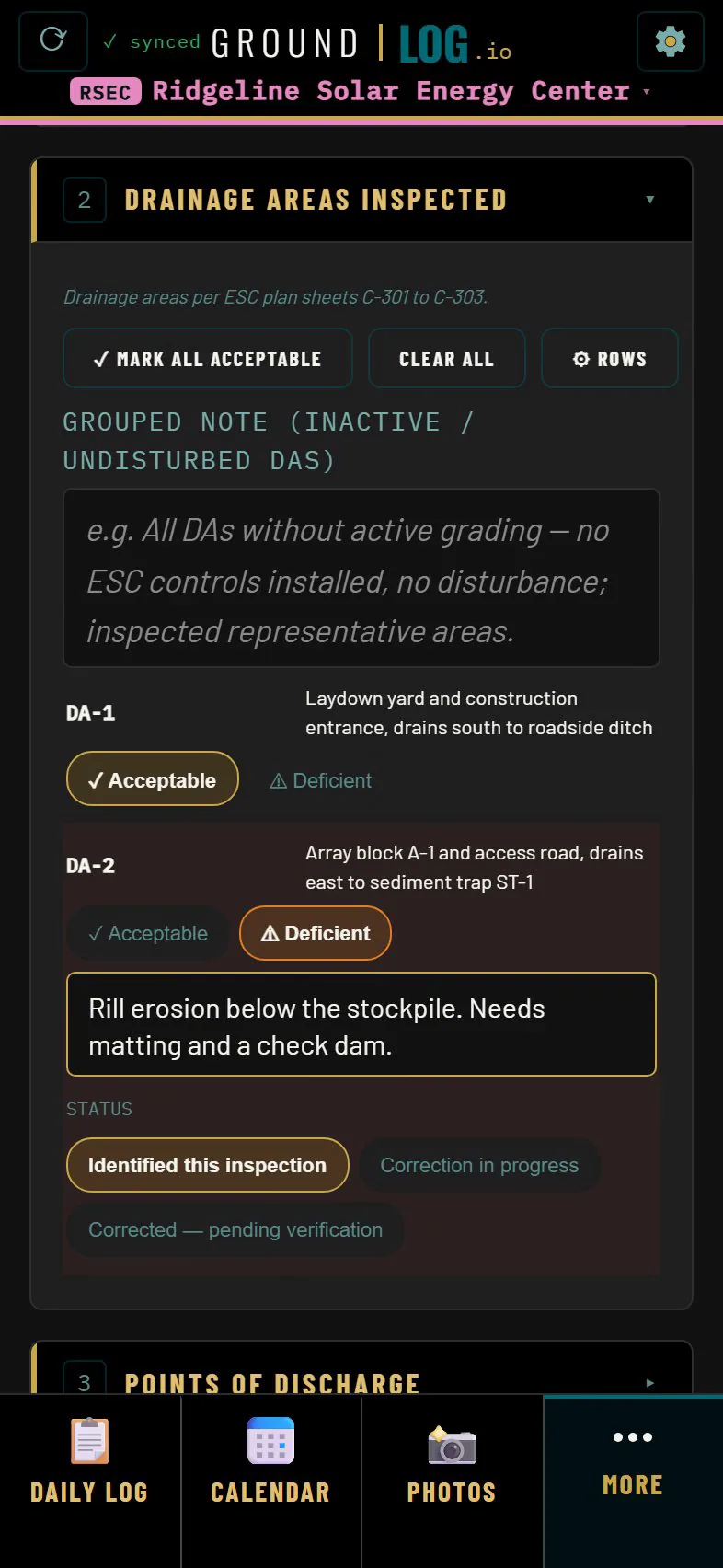
Drainage areas and discharge points carry forward from the last inspection. Mark them acceptable in one tap. Flip one to deficient and the note opens.
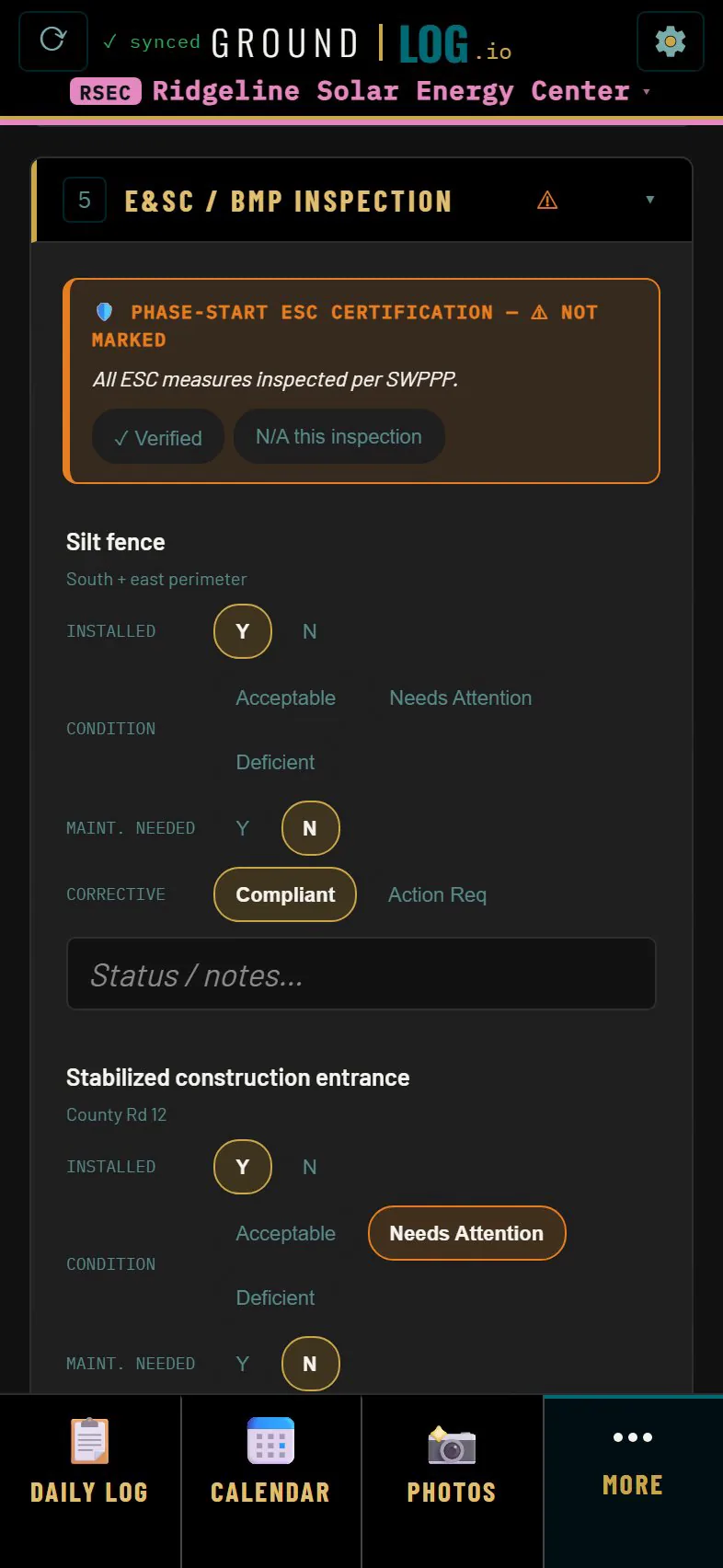
Every practice from the SWPPP is a row. Installed, condition, maintenance, corrective action.
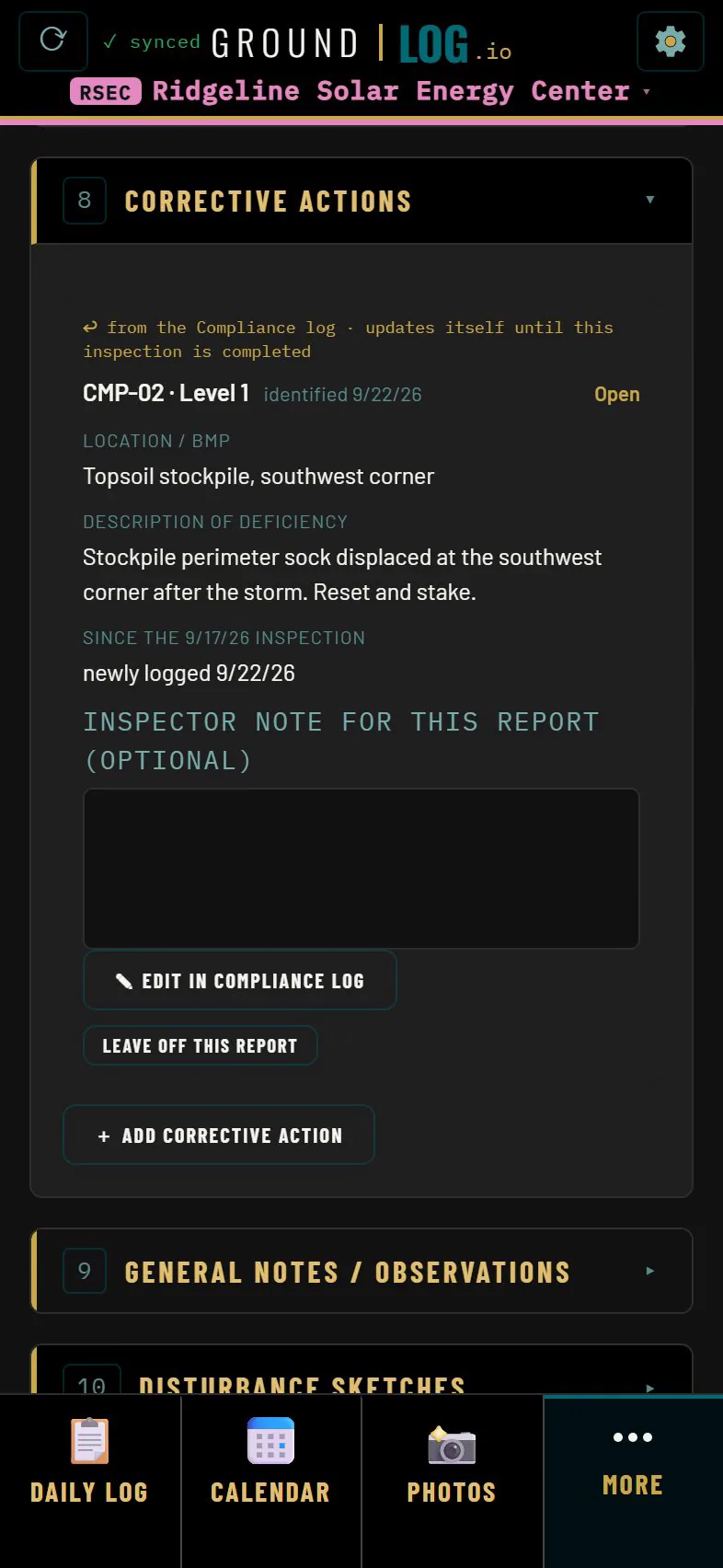
Corrective actions collect themselves from what you flagged. Add your own if you need to.
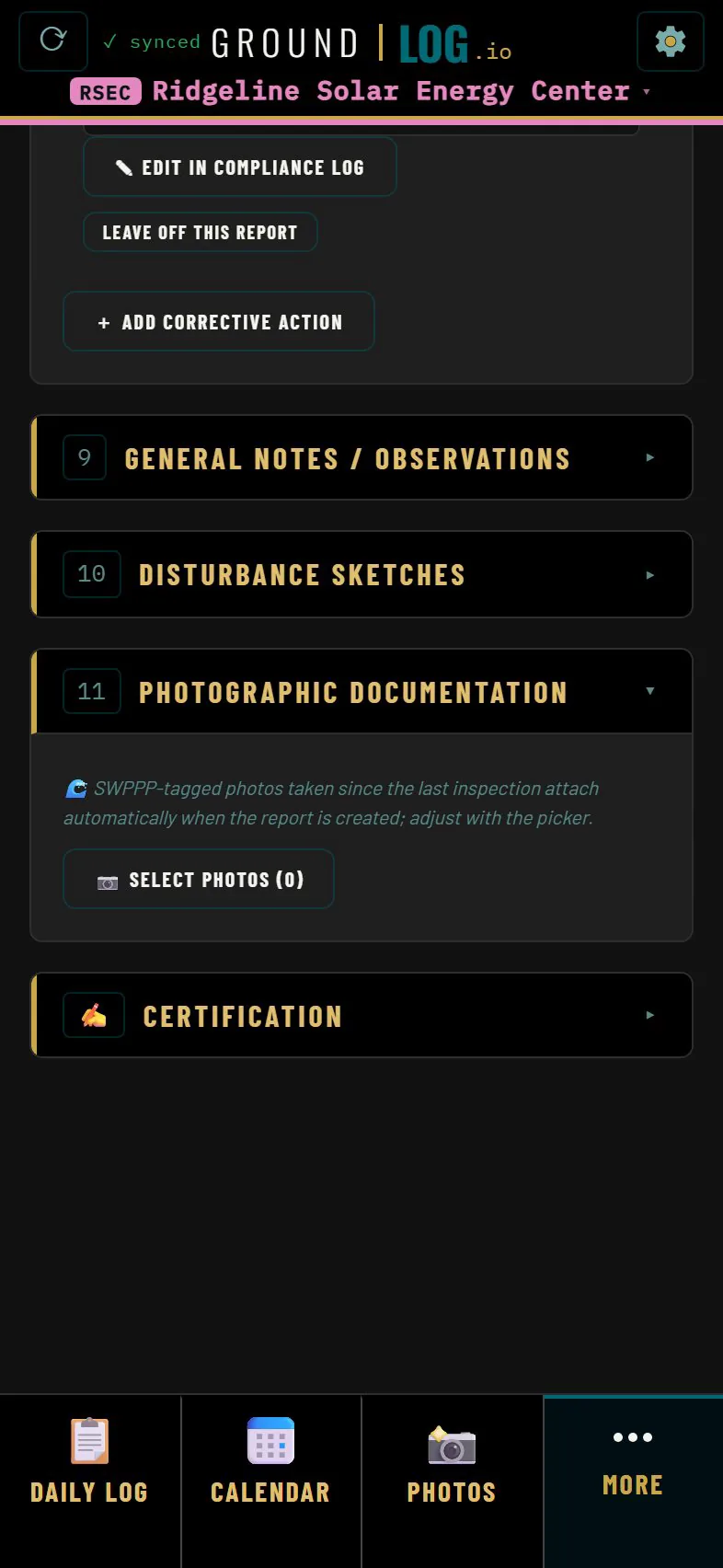
Photos you tagged for stormwater since the last inspection are already here.
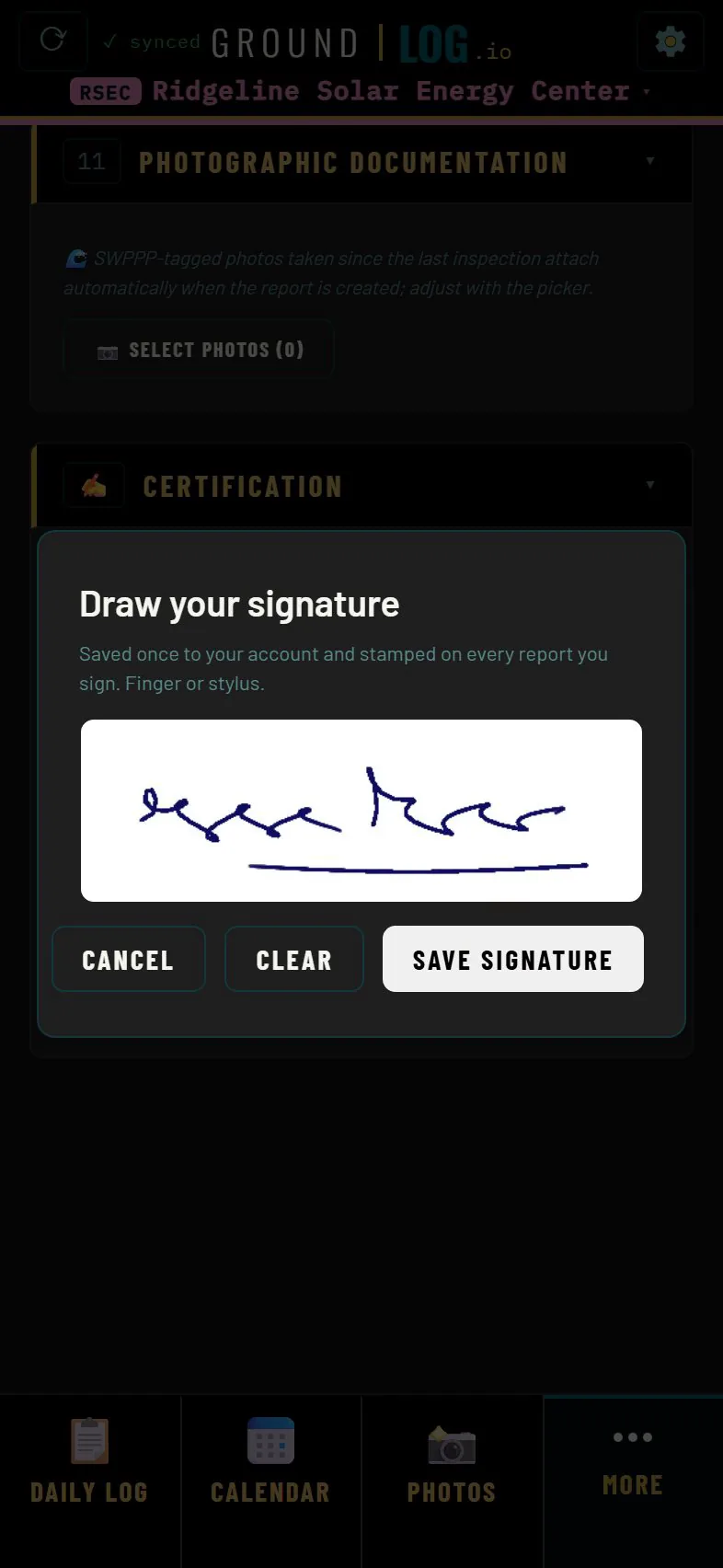
Sign it on the screen, with a finger or a stylus. Complete locks the record, and offers to carry what you flagged into the compliance log. Reopening asks you to confirm, because this is a regulatory record.
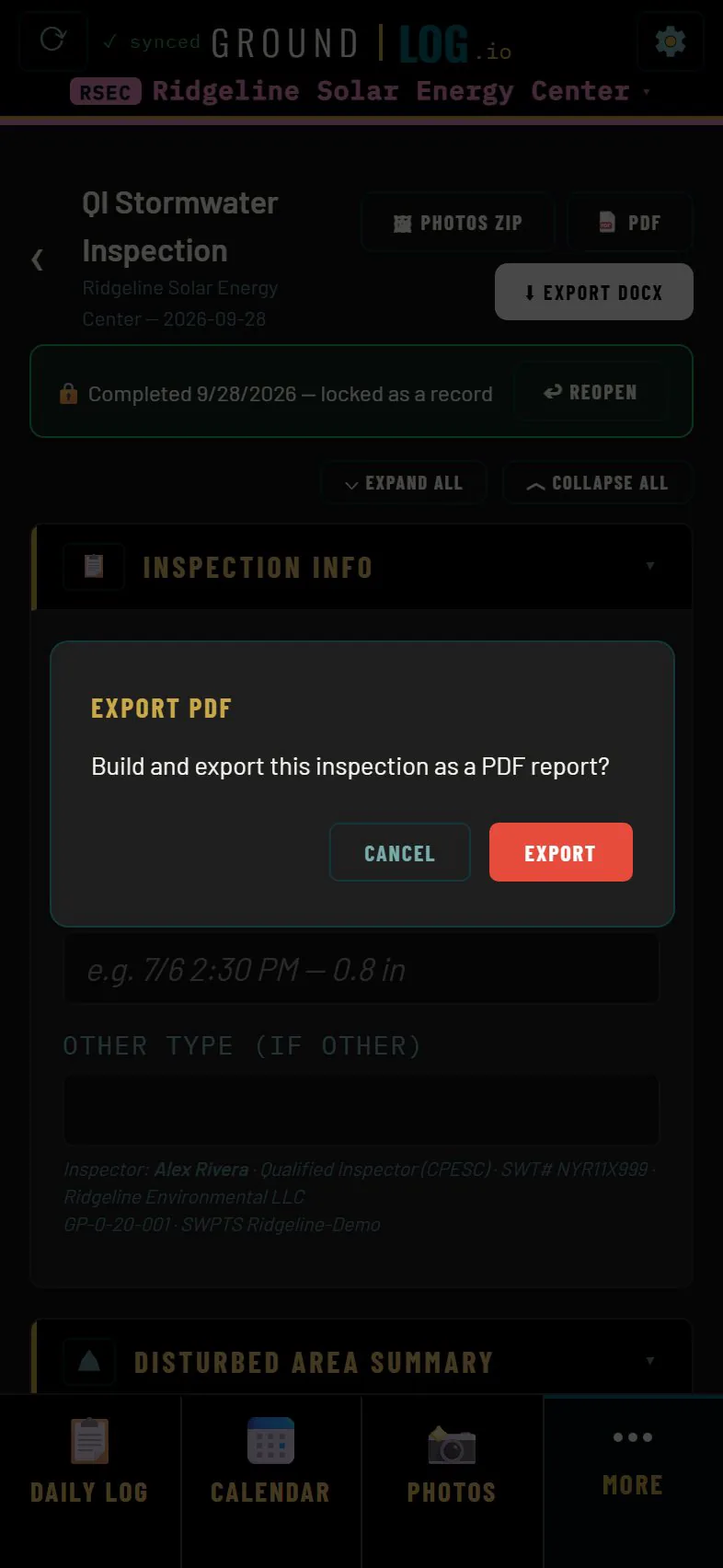
Export a PDF or a Word file in the format the agency expects, and send it from your phone.
The daily report
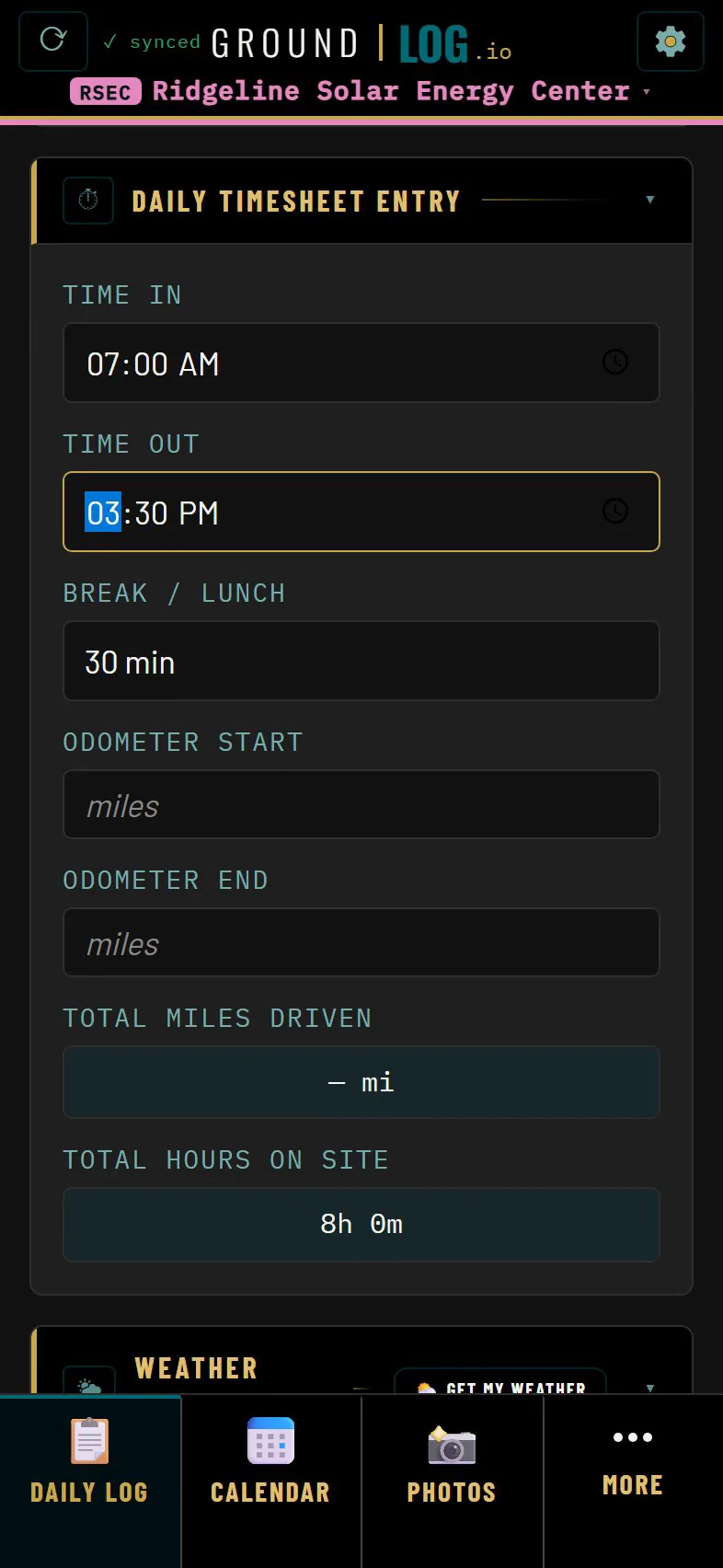
End of the day. Time Out closes the timesheet, and the hours are already added up.
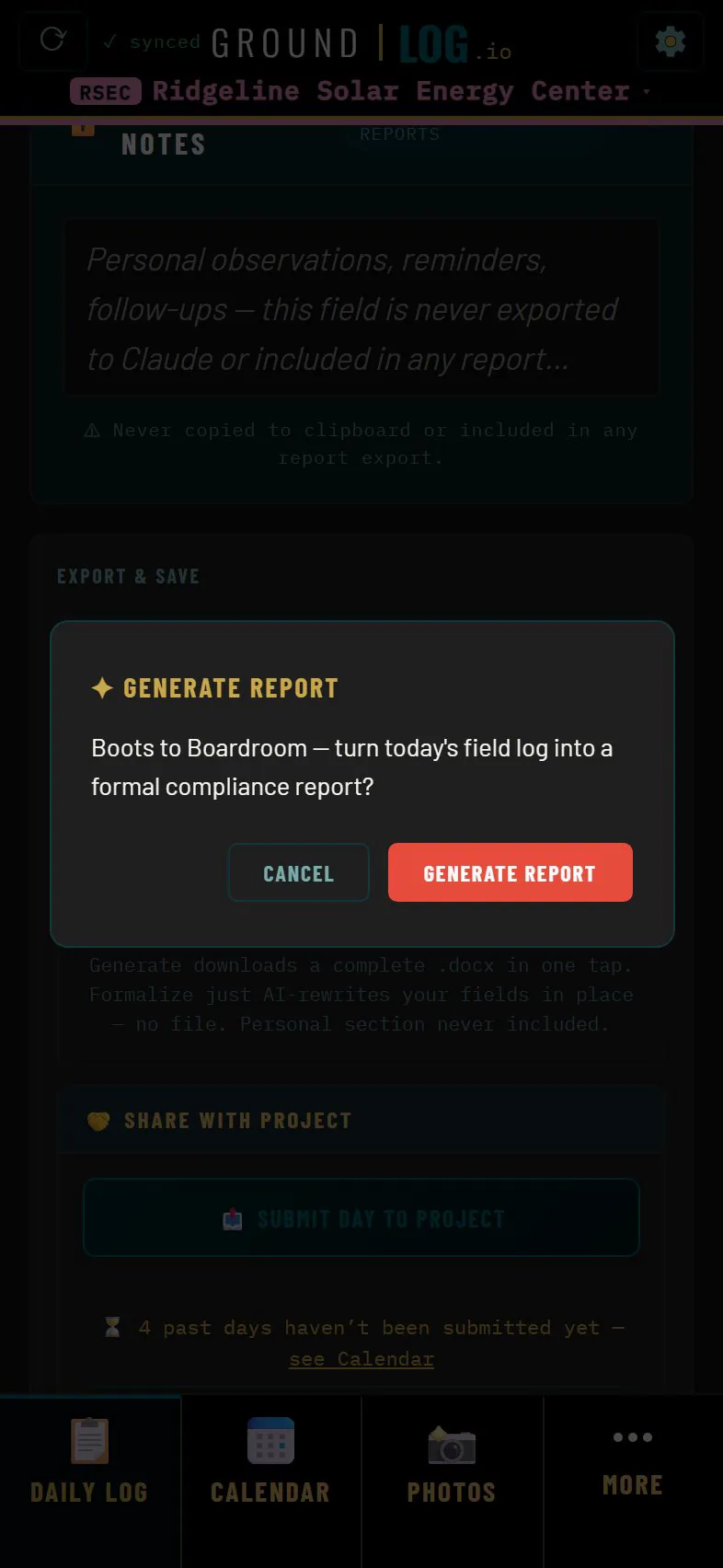
One button turns the day into a report. If you turn it on, a narrative draft writes itself from your entries. It is yours to edit, and it only sees what you allowed.
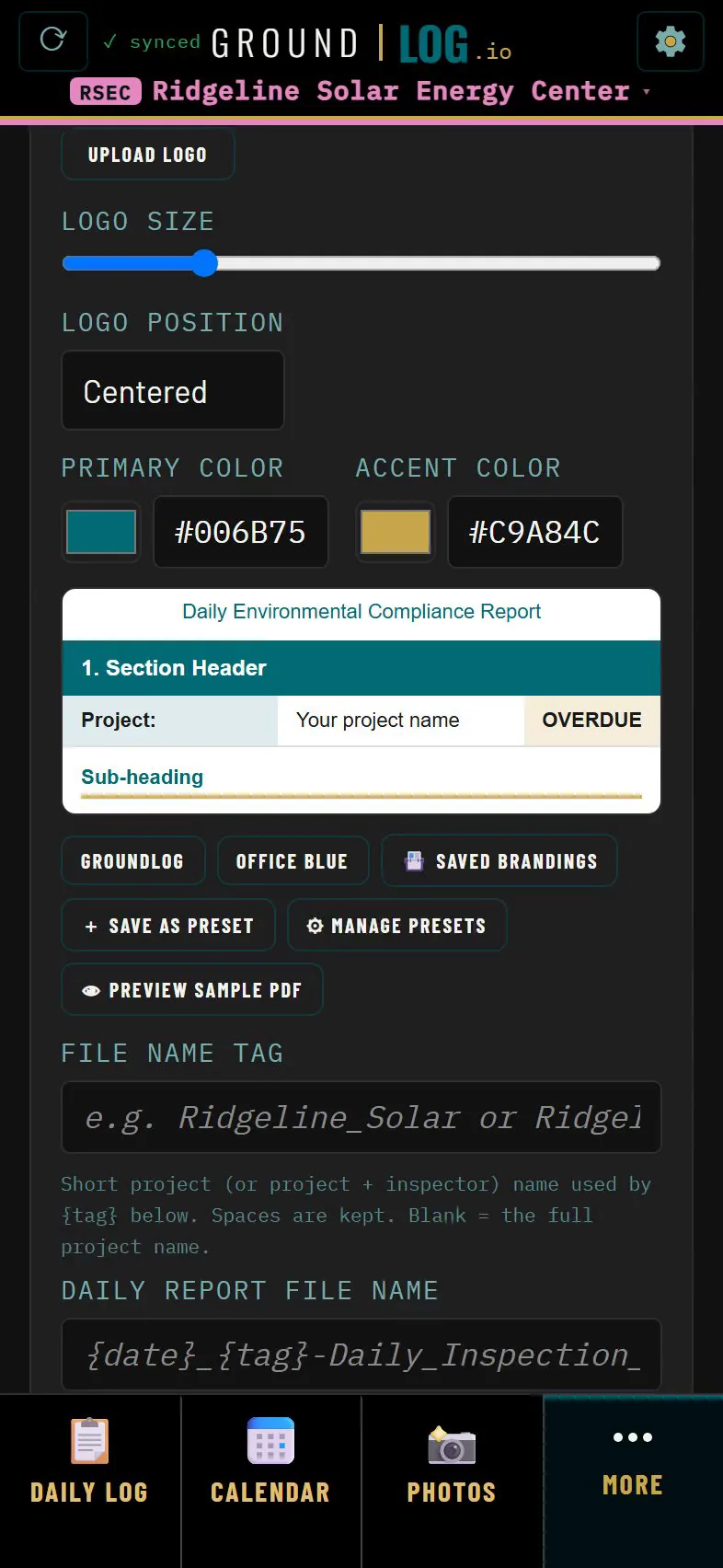
The cover carries your firm's logo and colors, set once per project. Weather, checklist, compliance, photos with captions. Nothing retyped.
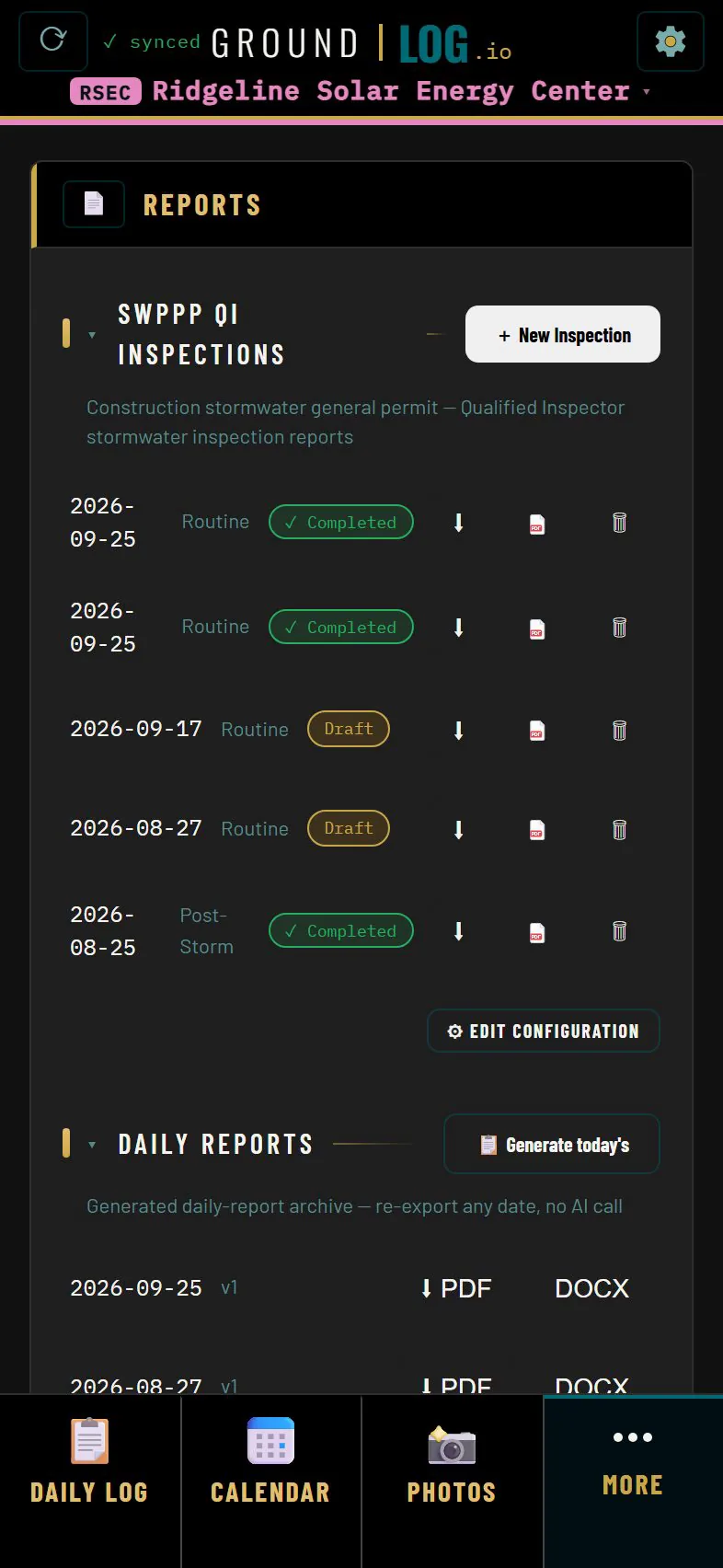
Every report is kept. Open any day again, export any version again.
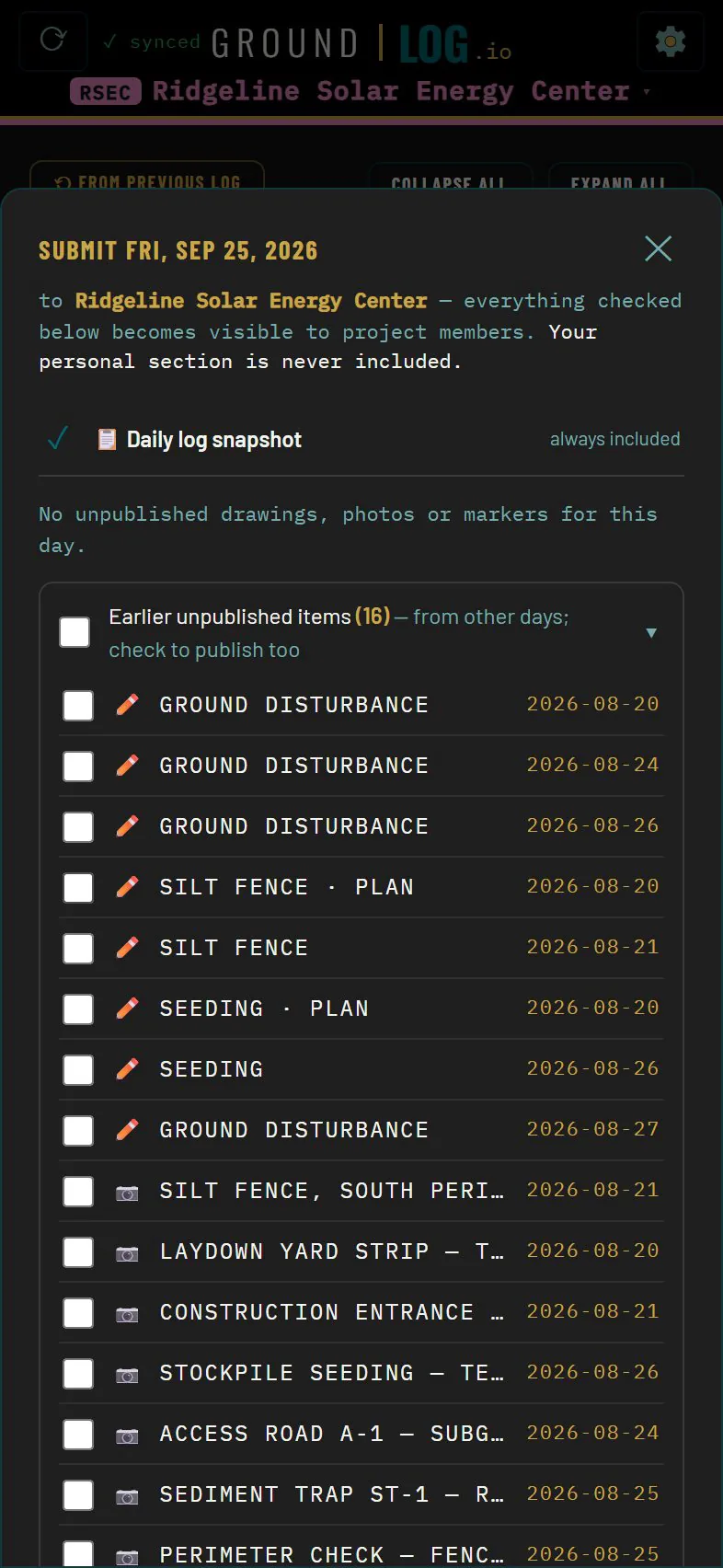
Submit the day to the project. Your reviewer gets it. You are done for the day.
Team and account
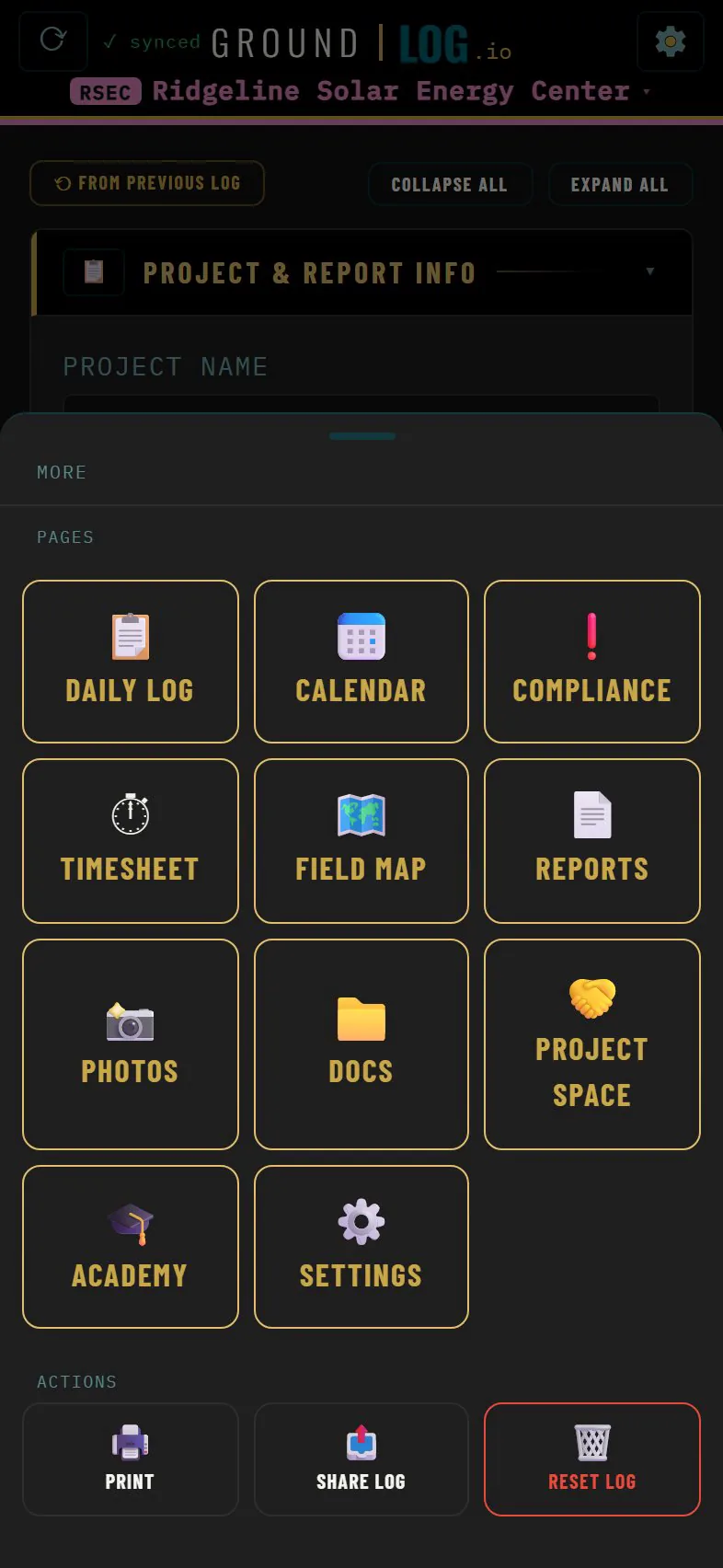
Under More: every page, your project, your team, your account.
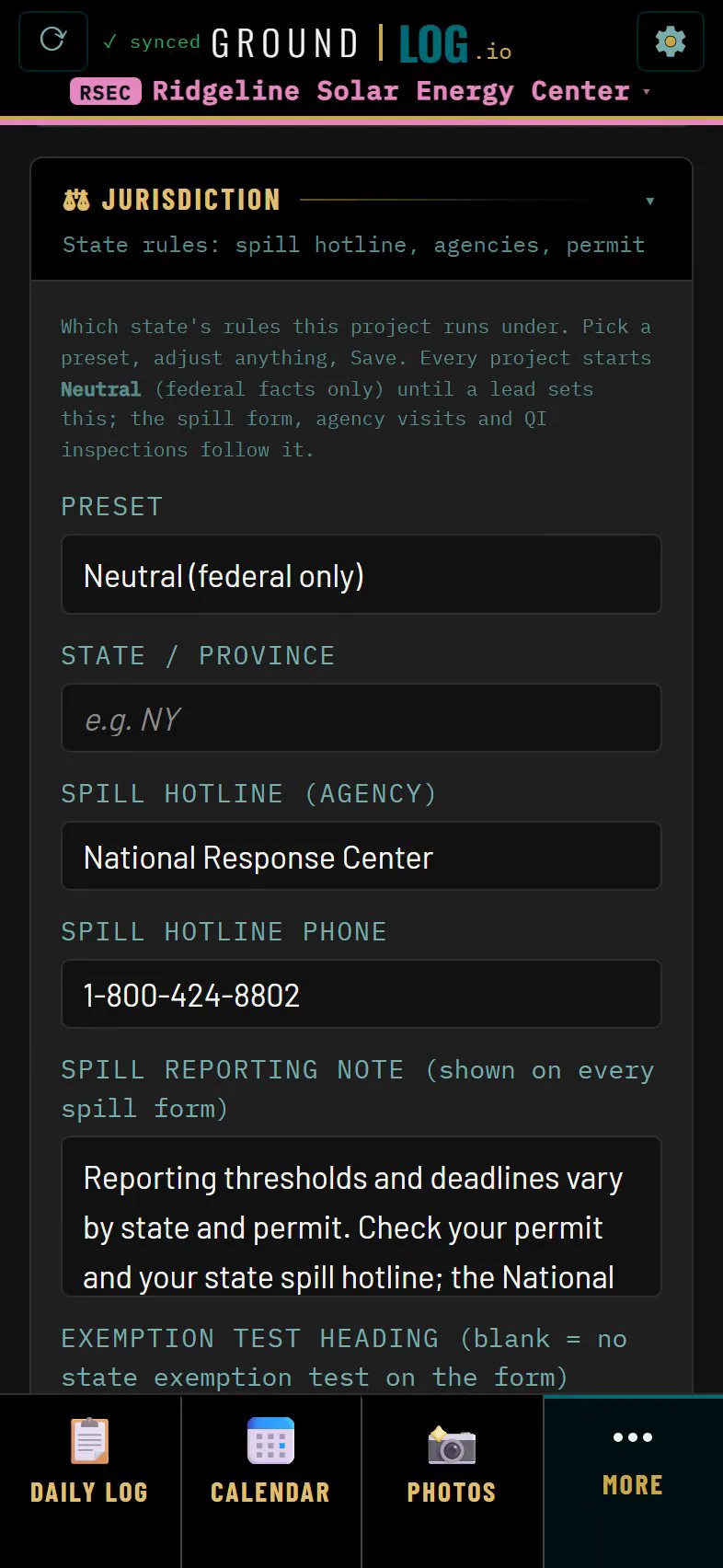
Every project carries its jurisdiction. The agencies, the permit program, the notification clocks. Set once, and every record you saw already knew.
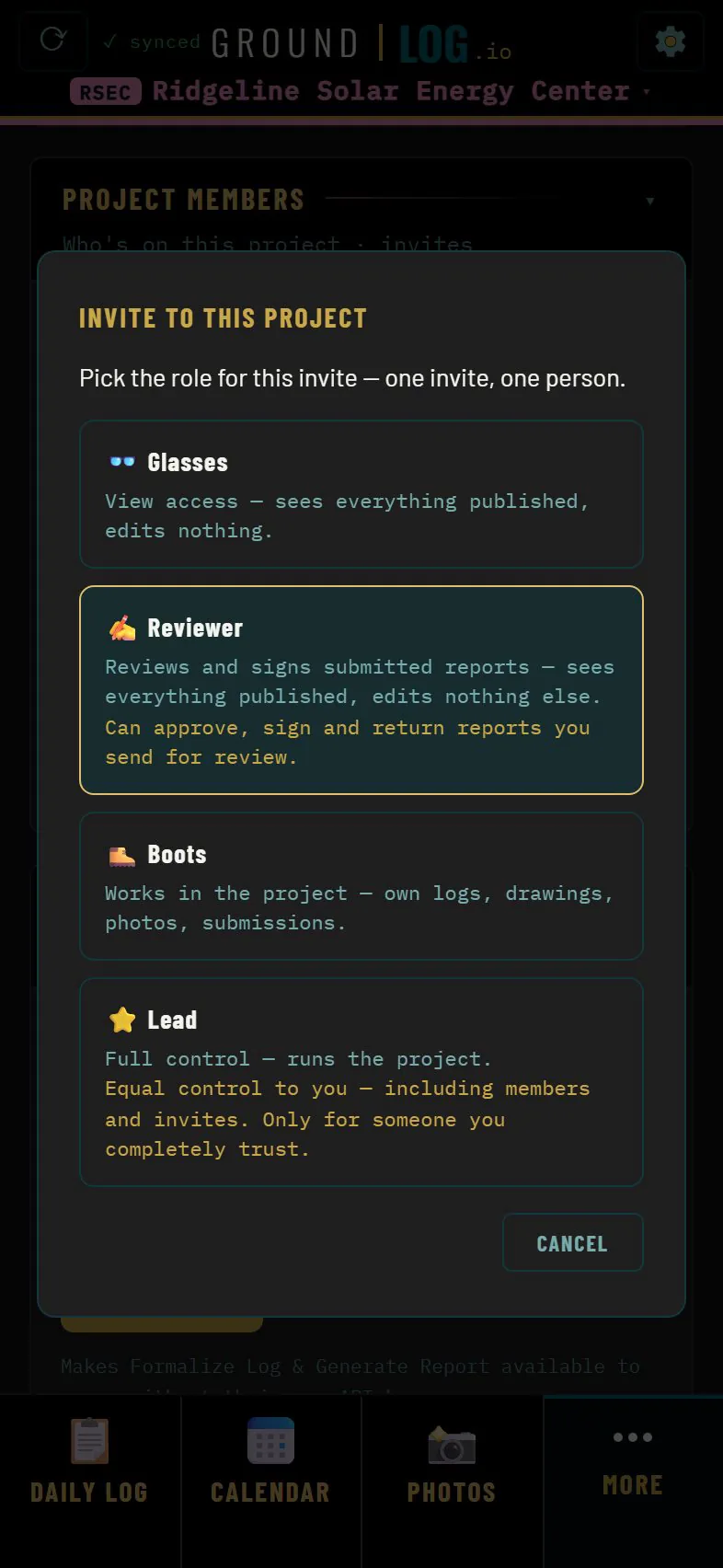
Invite a teammate with a link or a QR code. Roles set what they can change, never what they can see.
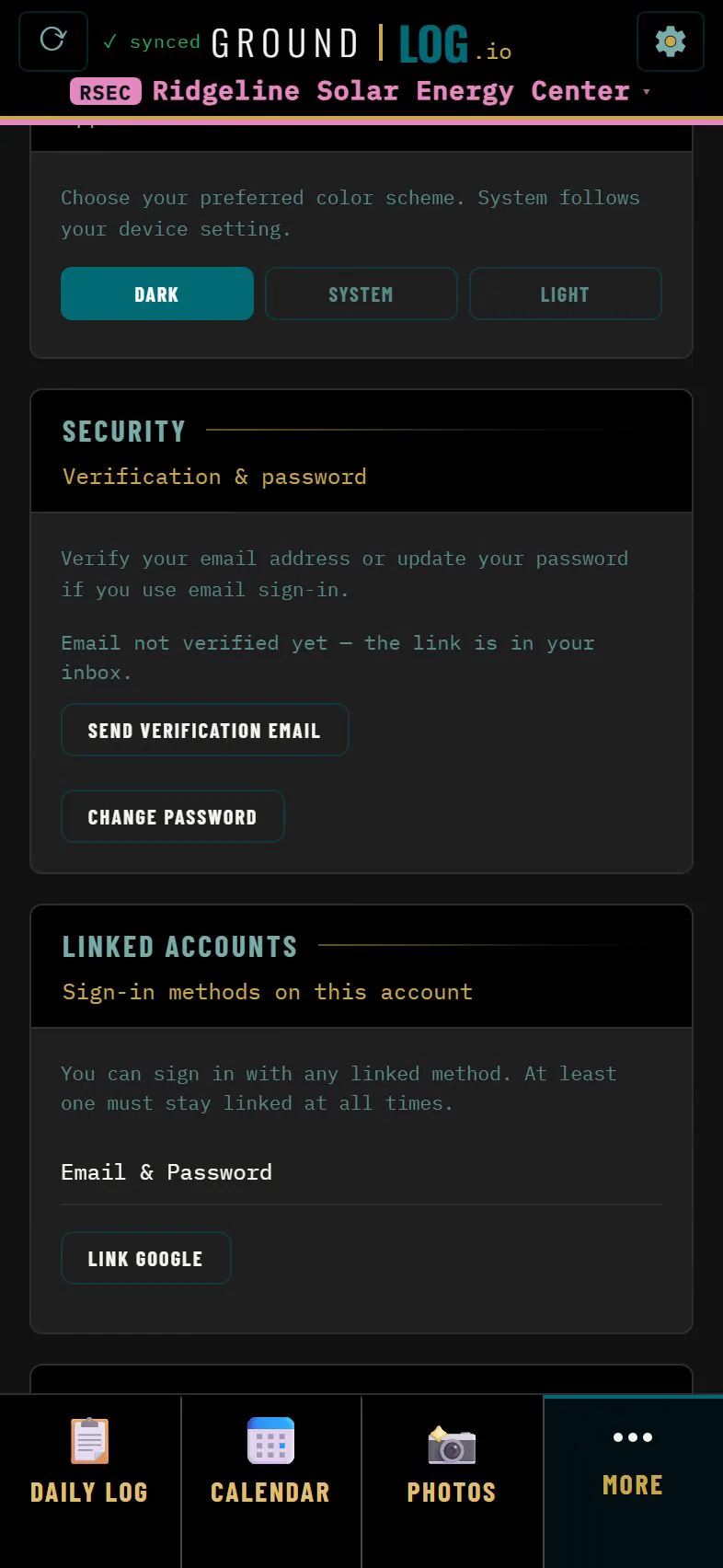
Your account is yours. Your name, your sign in methods, your data. A firm is a layer on top. The account stays with you.
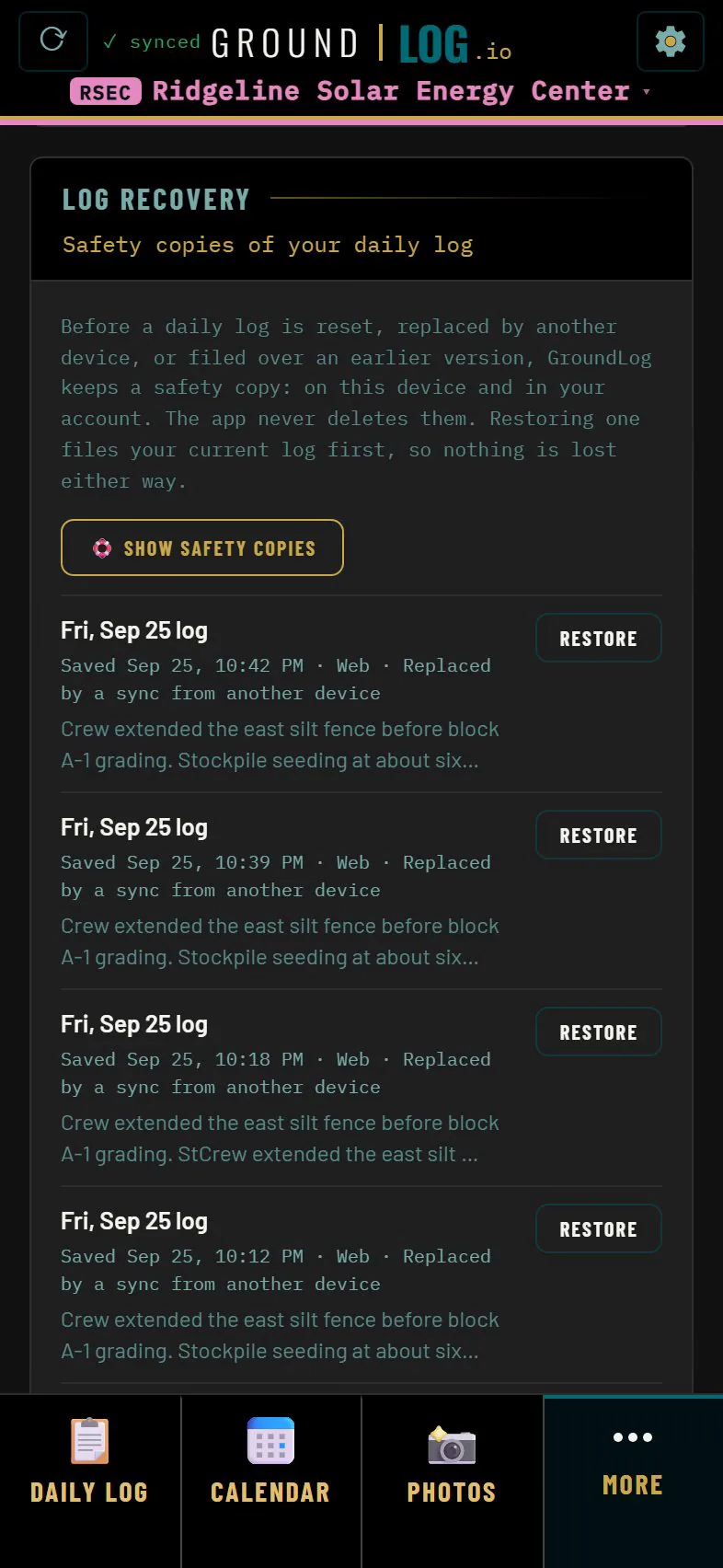
Every daily log is vaulted before anything replaces it. Log Recovery brings a day back in one tap.